
Blacklist and Whitelist Targeting
Summary
Use blacklists and whitelists to block or allow traffic from specific sources and IP ranges.
Before You Begin
- Role: Advertiser
- Required information:
- source IDs
- IP addresses or CIDR ranges
- Estimated time: 2-4 minutes
Steps
Option 1: Blacklisting of sources
- On the campaign creation page, locate the Black\White list section and the Blacklist of sources
- Enter the Source IDs to block, separated by commas.
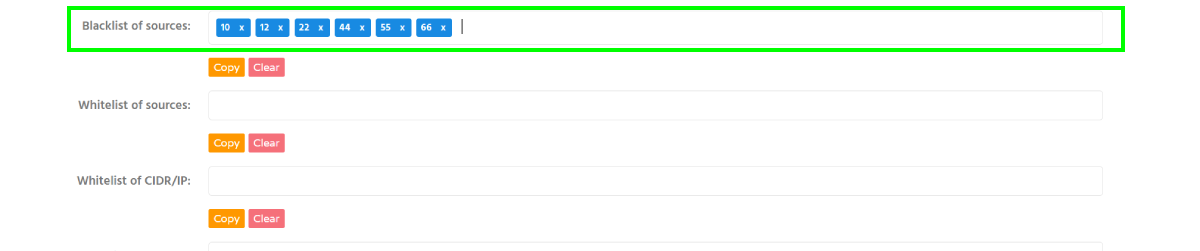
Option 2: Whitelisting of sources
- On the campaign creation page, locate the Black\White list section and the Whitelist of sources
- Enter the Source IDs to allow, separated by commas.
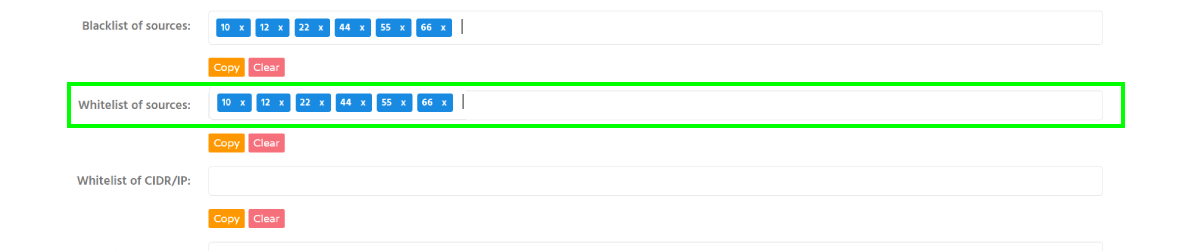
Information: Use the {source_id} parameter in your tracking URL or postback to identify traffic sources.
Option 3: IP and CIDR Whitelisting/Blacklisting
- On the campaign creation page, locate the Black\White list section and the Whitelist of CIDR/IP
- Enter IP addresses or CIDR ranges in the appropriate whitelist or blacklist field. Both IPv4 and IPv6 CIDR ranges are supported.
Troubleshooting
Issue: I'm still receiving traffic from a blacklisted source
Solution:
- blacklist changes are not always applied instantly. Users who already received a notification may still generate clicks.
Verification
After saving the campaign, the configured Source IDs or IP ranges will appear in the corresponding blacklist or whitelist field.