
Create Creative Push and Inpage Push
Summary
Create a creative to attract users and generate traffic for your advertising campaign.
Before You Begin
- Role: Advertiser.
- Required information:
- Title & Text
- Icon and Image file
- Landing page URL
- Tracking parameters (optional)
- Estimated time: 10 minutes
Steps
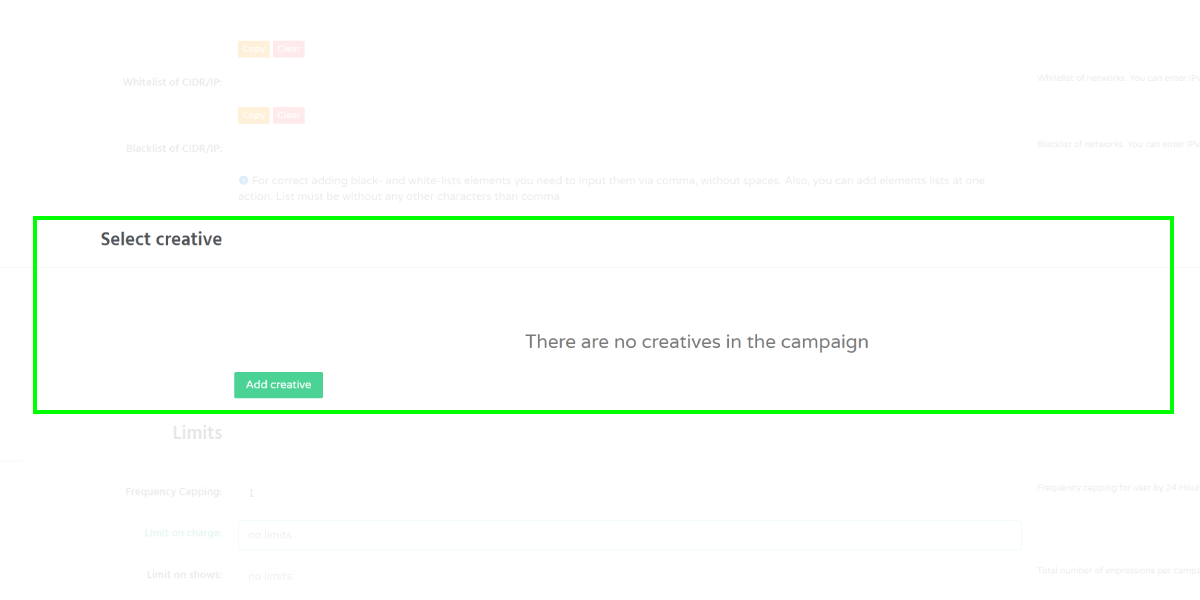
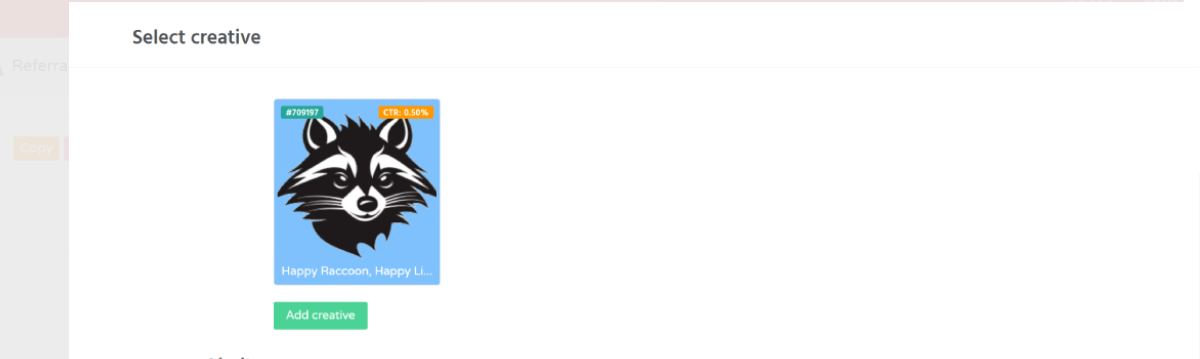
- Locate the Select Creative section in your campaign and click Add Creative.
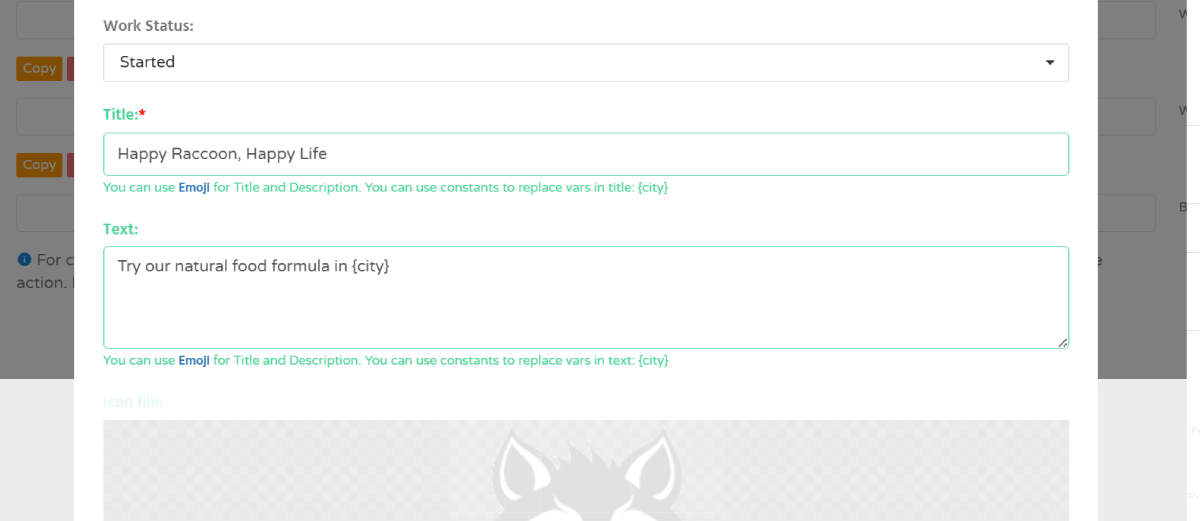
- Enter the title and description for your creative.
-
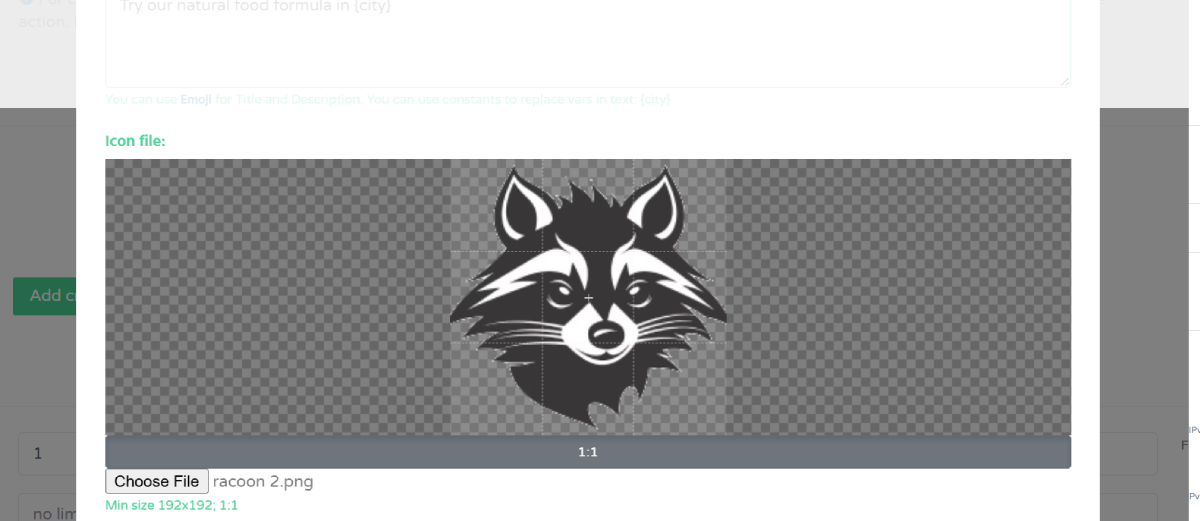
Upload an icon image.
Requirements:
- Aspect ratio: 1:1
- Minimum size: 192×192 px
-
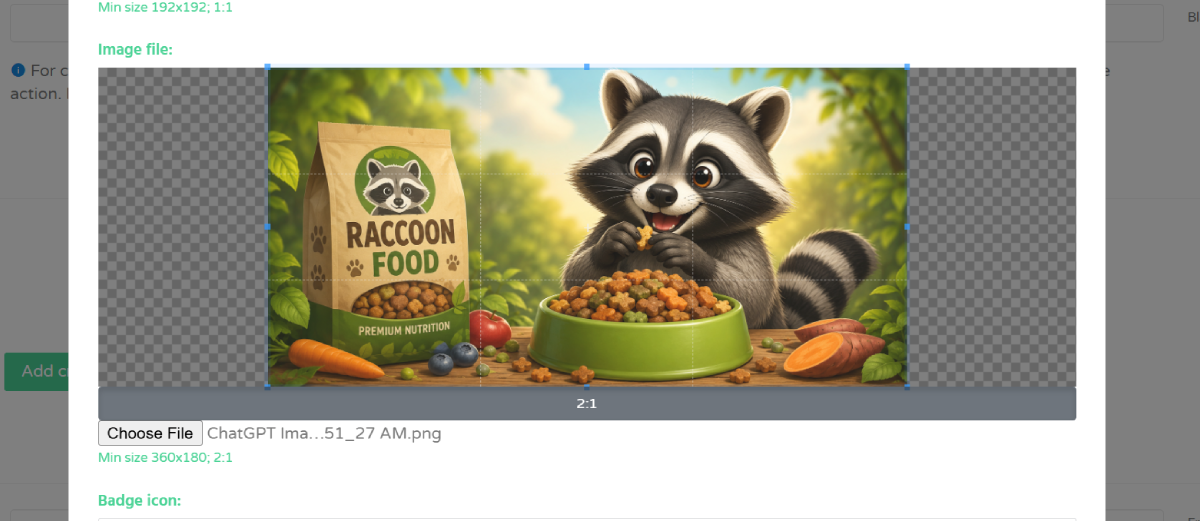
Upload the main image.
Requirements:
- Aspect ratio: 2:1
- Minimum size: 360×180 px
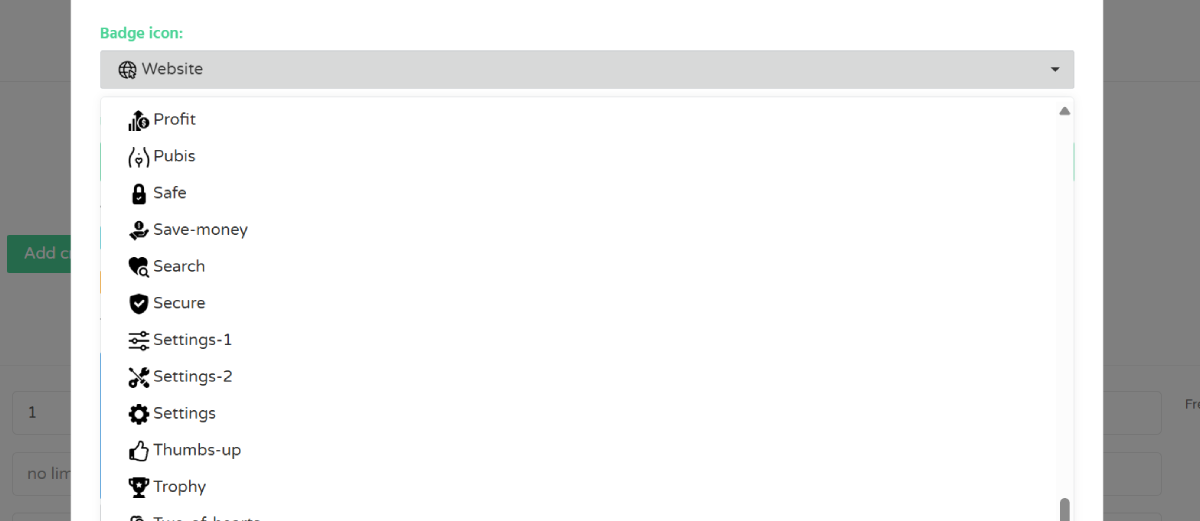
- Select a badge icon for your push notification.
- Enter the destination URL for your offer or landing page.
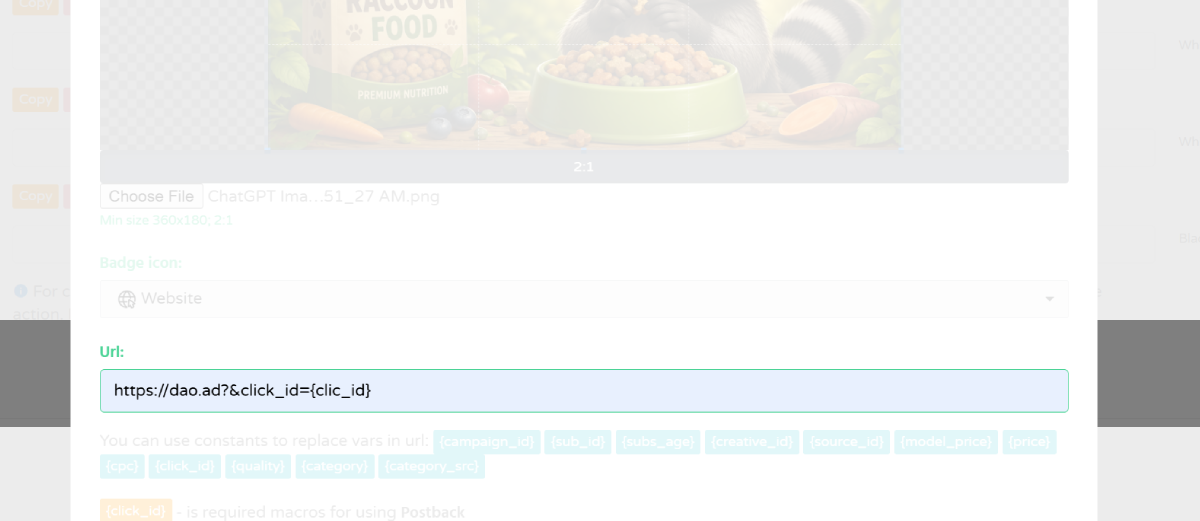
Note: Add tracking parameters such as
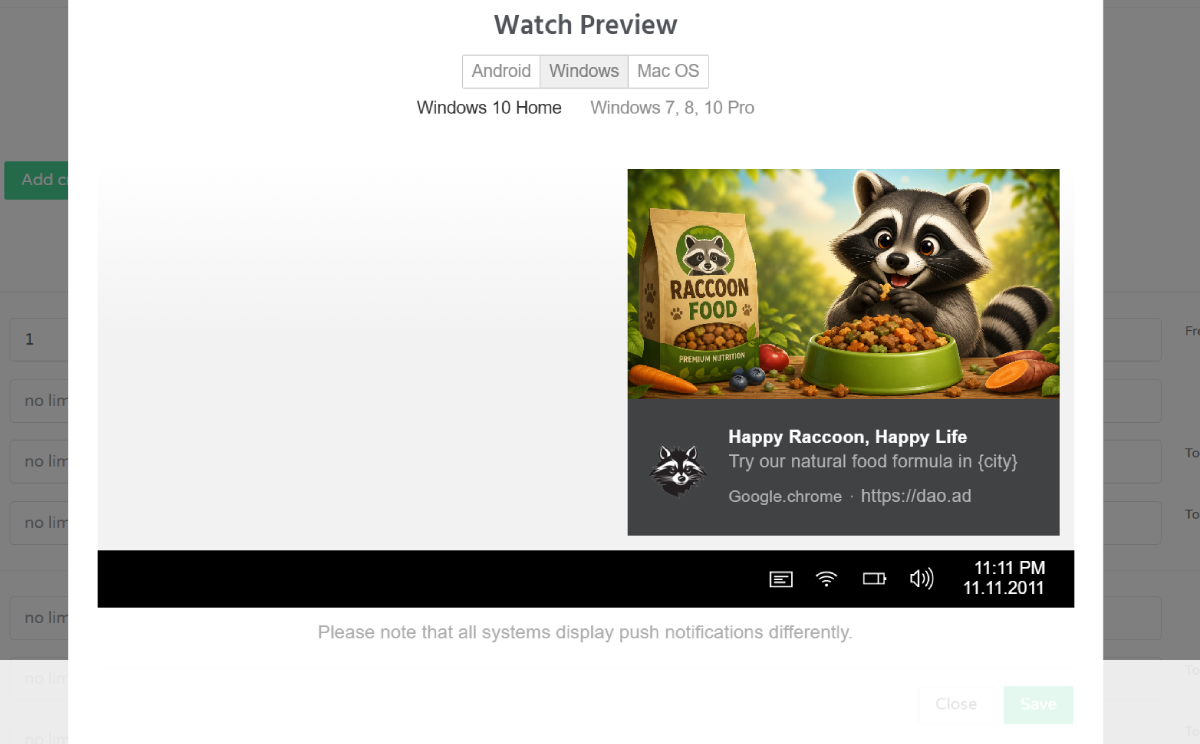
{click_id}if you plan to use conversion tracking and postbacks. Discover full information about Tracking parameters and Postback. - Review the creative preview for desktop and mobile devices.
- Click Save
- The newly created creative now appears in your campaign.
Troubleshooting
Issue: Unable to save creative
Solutions:
- Check the Title and Icon. Your ads should contain at least Title and Icon
- contact DAO.AD Support
Issue: Creative does not get traffic
Solution:
- Verify that the creative status is Active.
-
Make sure the campaign is active and has sufficient budget.
-
Check that the creative has been approved by moderation.
Verification
After saving the creative, it appears in the Select Creative section and becomes available for campaign delivery.