
Domain Volumes Video
Summary
Use Domain Volumes Video to discover available traffic sources, review estimated traffic volumes, and quickly build a whitelist for your Video campaigns.
Before You Begin
- Role: Advertiser.
- Required information:
- Existing Video campaign
- Whitelist-enabled campaign (optional)
- Estimated time: 2 minutes
Steps
- Open your Video campaign or create a new one.
- Open Domain Volumes Video from the top navigation menu.
- Search for a domain or use the available filters to find the traffic sources you want to target.
- Copy the required Source IDs or SubIDs directly from the search results.
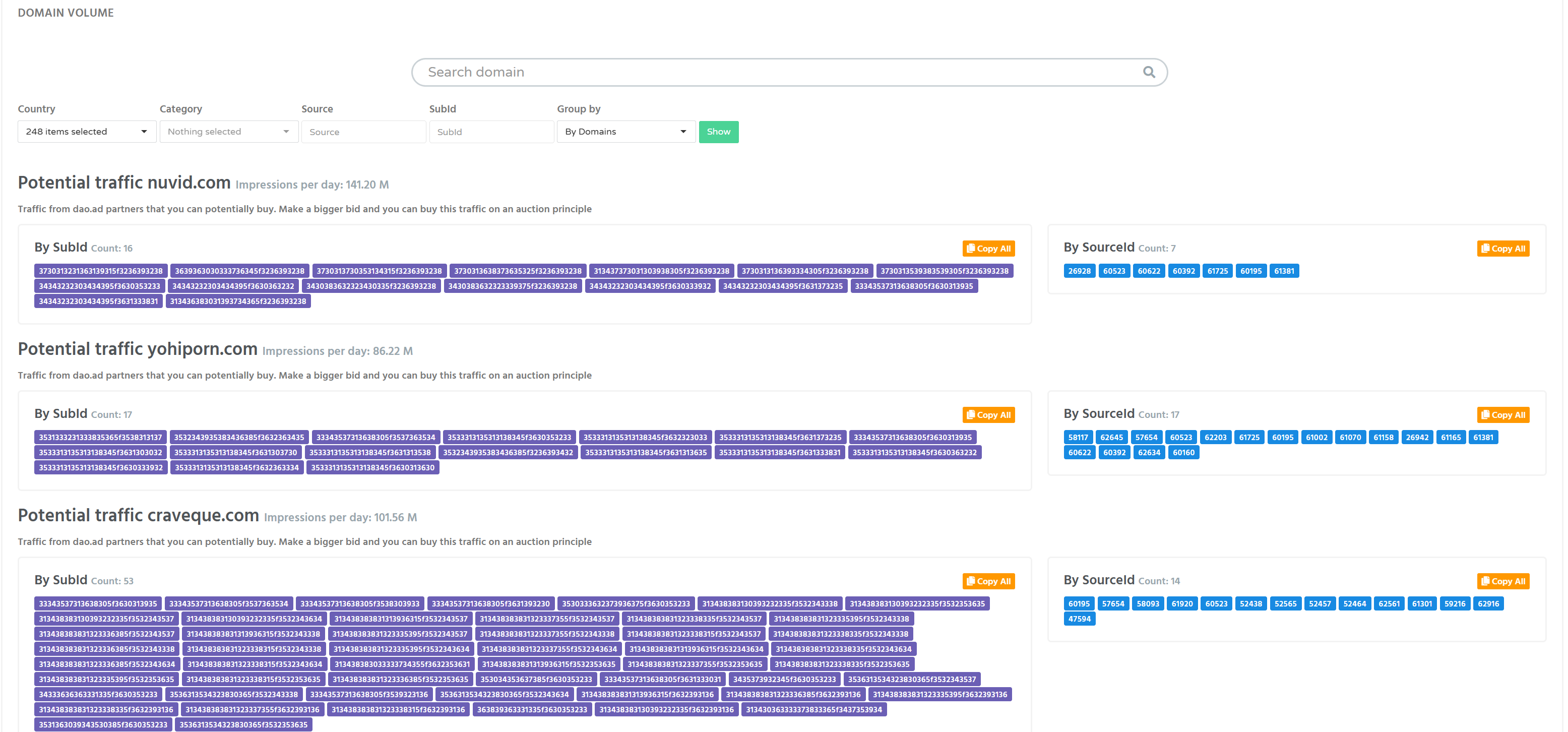
Note: Domain Volumes provide estimated traffic availability. Actual traffic depends on your campaign targeting, bid, budget, and current marketplace demand.
5. Paste the copied values into your campaign whitelist and save the campaign.
Troubleshooting
Issue: The campaign receives little or no traffic after applying a whitelist.
Possible causes
- Selected sources do not match your GEO targeting.
- Device targeting excludes available traffic.
- Your CPM bid is too low.
- Budget limits have been reached.
Solutions
- Verify that your campaign targeting matches the selected sources.
- Increase your bid if necessary.
- Expand GEO or device targeting.
- Check your campaign budget.