
Create a Pop Campaign
Summary
Unlike push campaigns, Pop campaigns do not require graphical creatives.
A Pop campaign only requires a valid destination URL that will be opened when the advertisement is triggered.
Before You Begin
- Role: Advertiser.
- Required information:
- Destination URL
- Estimated time: 10 minutes
Steps
- Navigate to Campaigns and select Popunder from the campaign type list.
- Click the Create Campaign button.
- Enter the campaign name and destination URL, then select the appropriate tracking template.
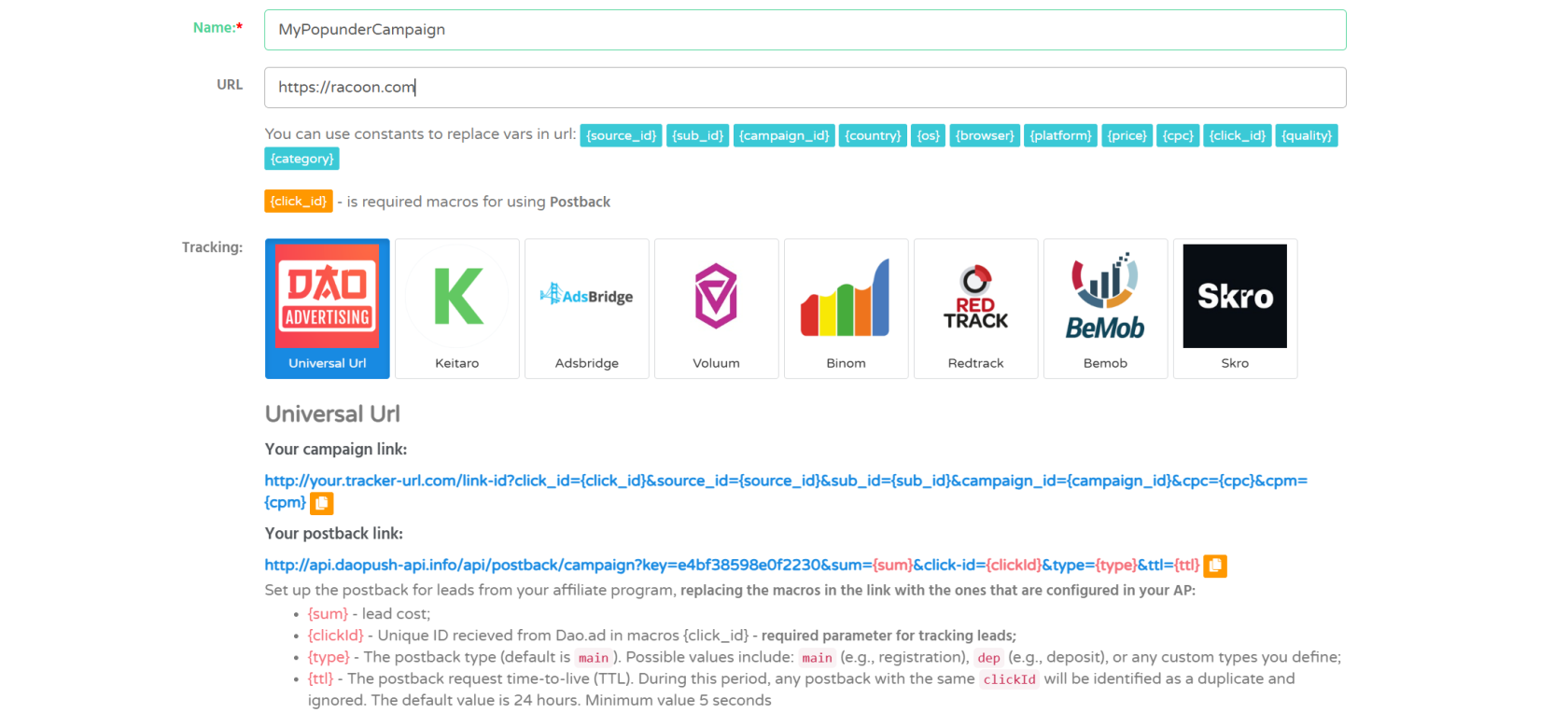
- Configure your targeting options and bidding settings.
- Configure the Smart Type settings, if required.
- Save the campaign. Once submitted, it will be reviewed by the DAO.AD moderation team.
Troubleshooting
Issue: Unable to save the campaign.
Solutions:
- Verify that all required campaign settings are configured.
- Ensure that all required fields, including Campaign Name, Destination URL, and Bid, are completed.
- If the issue persists, contact DAO.AD Support.