Voluum
Summary
This guide explains how to integrate Voluum with DAO.AD for click tracking and conversion tracking.
Before You Begin
- Role: Advertiser.
- Required information:
- Access to a Voluum account
- Estimated time: 5 minutes
Voluum Tracking Flow

Steps
- Sign in to Voluum tracker.
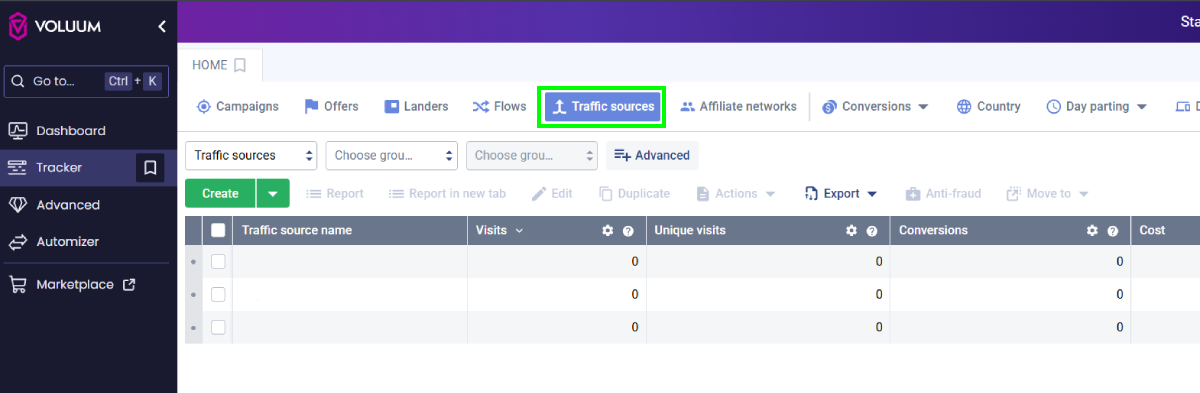
- Open the "Traffic sources" menu and click "Create".

- Locate the "DAO.AD" template.

- Scroll down to the "Passing conversion info to traffic source" section.
- Replace the API key placeholder with your DAO.AD API key from the DAO.AD Profile page and click Save.

- Go to "Campaigns" menu in Voluum tracker.
- Create a campaign connected to your CPA network or landing page.
- Select the previously created "DAO.AD" traffic source and choose a traffic type (optional).

- Add a previously created Offer in Voluum (for example, a CPA offer or landing page).

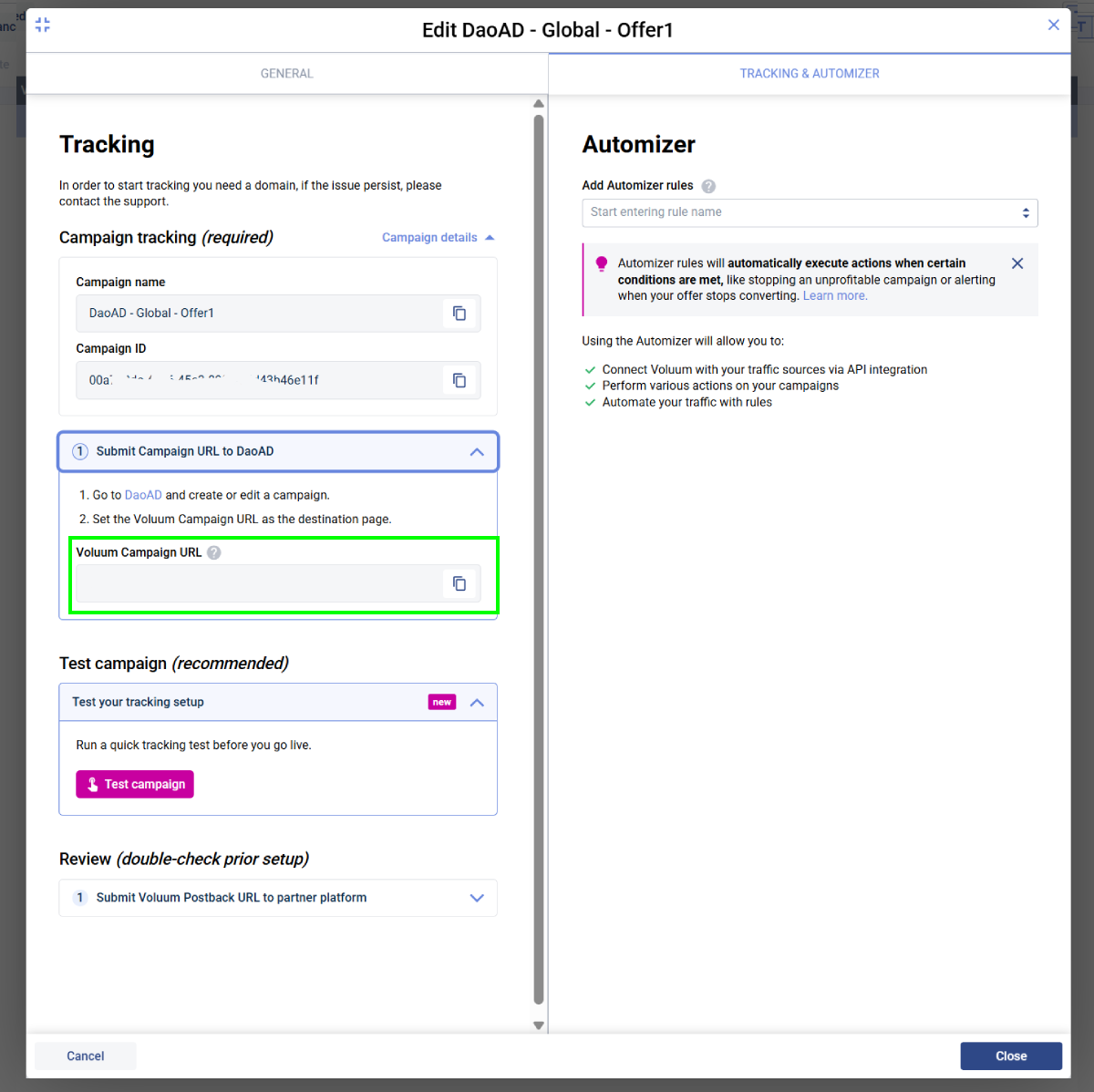
- Open the Tracking & Automizer tab and copy the Voluum Campaign URL.

- Paste the Voluum Campaign URL into the DAO.AD Creative URL field and click Save.
How It Works
- DAO.AD generates a unique click ID and passes it to Voluum.
- Voluum stores the click ID and redirects the user to your offer.
- When a conversion occurs, Voluum sends a postback to DAO.AD containing the original click ID and conversion value.
This allows DAO.AD to attribute conversions to the correct traffic source and optimize campaign performance.