Trackers and Examples
This chapter contains examples of integrations with common known trackers with DAO.AD
Keitaro
Summary
This guide explains how to integrate Keitaro with DAO.AD for click tracking and conversion tracking.
Before You Begin
- Role: Advertiser.
- Required information:
- Access to a Keitaro tracker
- Estimated time: 5 minutes
Keitaro Tracking Flow

Steps
- Sign in to Keitaro tracker.
- Open the "Traffic Sources" menu.

- Click the "Create" button and select the "DAO.AD" template.

- Locate the "S2S Postback" section and click the Edit button.

- Configure the postback URL using the URL constructor.

- Replace the API key placeholder with your DAO.AD API key from DAO.AD Profile page and click Apply.
- Verify that all parameters are configured correctly.

- Save the created traffic source.
- Go to "Campaigns" menu in Keitaro tracker.
- Create a campaign connected to your CPA network or landing page.
- Select the previously created "DAO.AD" traffic source and save the campaign.

- Copy the campaign URL by clicking the Link icon.

- Paste the campaign URL into the Creative URL field in DAO.AD.

- Save the creative and campaign settings in DAO.AD.
How it works
- DAO.AD sends a click ID to Keitaro.
- Keitaro stores this click ID and passes the user to your offer.
- When a conversion happens, Keitaro sends a postback to DAO.AD with the original click ID and conversion value.
Related
- Tracking Parameters
- Postback Parameters
- Test a Conversion (HTTP Examples)
- Tracking Configuration Models
- Micro-bidding Tool
Voluum
Summary
This guide explains how to integrate Voluum with DAO.AD for click tracking and conversion tracking.
Before You Begin
- Role: Advertiser.
- Required information:
- Access to a Voluum account
- Estimated time: 5 minutes
Voluum Tracking Flow

Steps
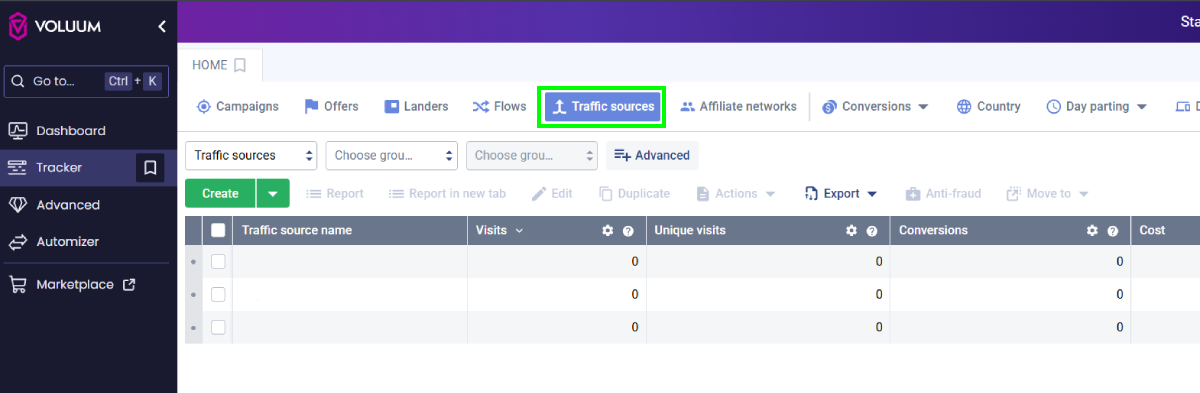
- Sign in to Voluum tracker.
- Open the "Traffic sources" menu and click "Create".

- Locate the "DAO.AD" template.

- Scroll down to the "Passing conversion info to traffic source" section.
- Replace the API key placeholder with your DAO.AD API key from the DAO.AD Profile page and click Save.

- Go to "Campaigns" menu in Voluum tracker.
- Create a campaign connected to your CPA network or landing page.
- Select the previously created "DAO.AD" traffic source and choose a traffic type (optional).

- Add a previously created Offer in Voluum (for example, a CPA offer or landing page).

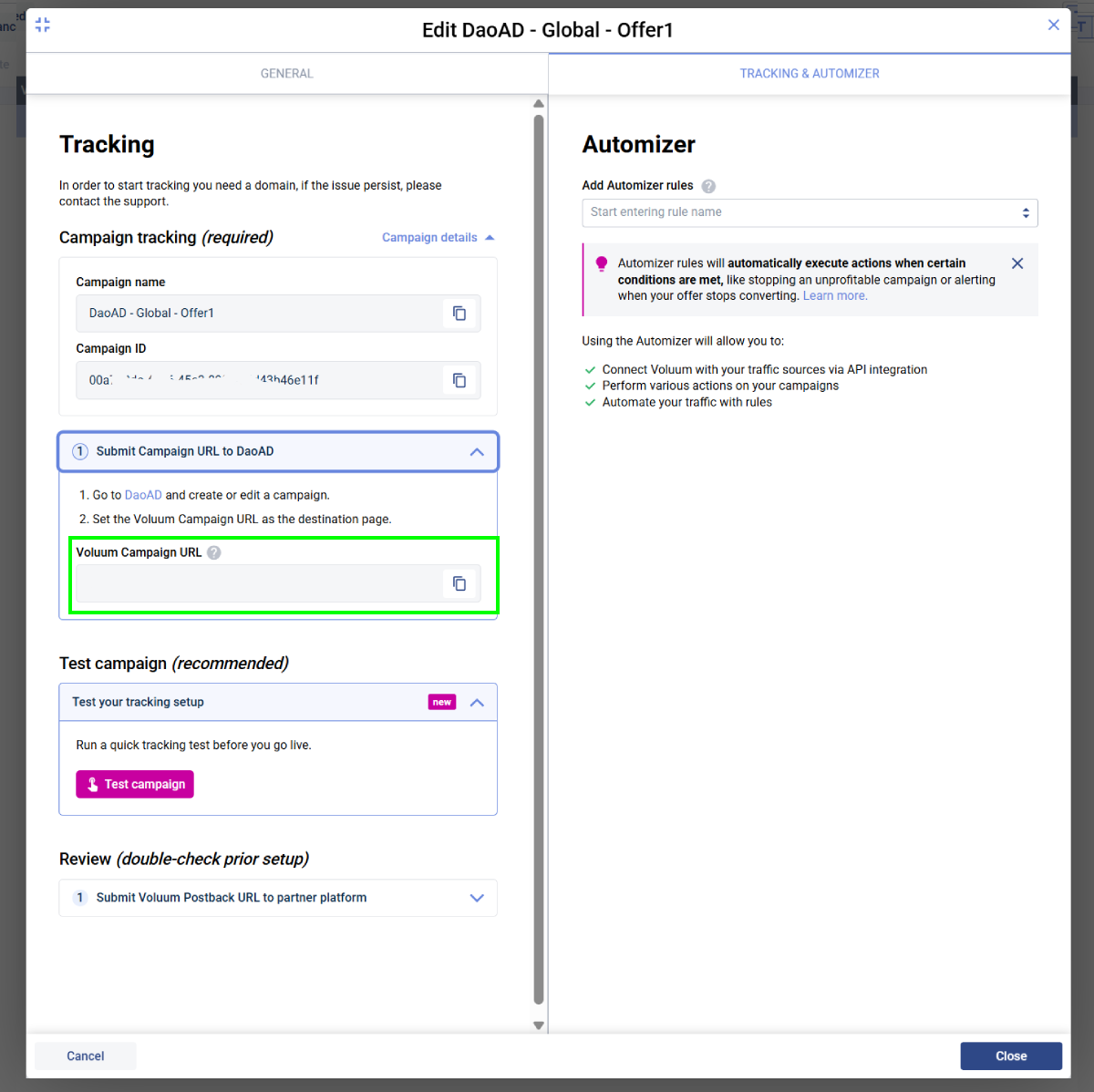
- Open the Tracking & Automizer tab and copy the Voluum Campaign URL.

- Paste the Voluum Campaign URL into the DAO.AD Creative URL field and click Save.
How It Works
- DAO.AD generates a unique click ID and passes it to Voluum.
- Voluum stores the click ID and redirects the user to your offer.
- When a conversion occurs, Voluum sends a postback to DAO.AD containing the original click ID and conversion value.
This allows DAO.AD to attribute conversions to the correct traffic source and optimize campaign performance.
Related
- Keitaro
- Tracking Parameters
- Postback Parameters
- Test a Conversion (HTTP Examples)
- Tracking Configuration Models
- Micro-bidding Tool
Binom
Summary
This guide explains how to integrate Binom with DAO.AD for click tracking and conversion tracking.
Before You Begin
- Role: Advertiser.
- Required information:
- Access to your Binom account
- Estimated time: 5 minutes
Binom Tracking Flow

Steps
- Sign in to Binom.
- Open the "Traffic sources" menu and click "Create".

- Click "Load from template"

- Find "DAO.AD" in the list of predefined templates.

- Replace the placeholder API key with your DAO.AD API key from the DAO.AD Profile page and click Save.

- Go to "Campaigns" menu in Binom.
- Create a campaign connected to your CPA network or landing page.
- Select the previously created "DAO.AD" traffic source.
- Copy the campaign URL by clicking the link icon next to the campaign name.

- Paste the Binom Campaign URL into the DAO.AD Creative URL field and click Save.
How It Works
- DAO.AD generates a unique click ID and passes it to Binom.
- Binom stores the click ID and redirects the user to your offer.
- When a conversion occurs, Binom sends a postback to DAO.AD containing the original click ID and conversion value.
This allows DAO.AD to attribute conversions to the correct traffic source and optimize campaign performance.
Related
- Voluum
- Tracking Parameters
- Postback Parameters
- Test a Conversion (HTTP Examples)
- Tracking Configuration Models
- Micro-bidding Tool
Bemob
Summary
This guide explains how to integrate Bemob with DAO.AD for click tracking and conversion tracking.
Before You Begin
- Role: Advertiser.
- Required information:
- Access to your Bemob account
- Estimated time: 5 minutes
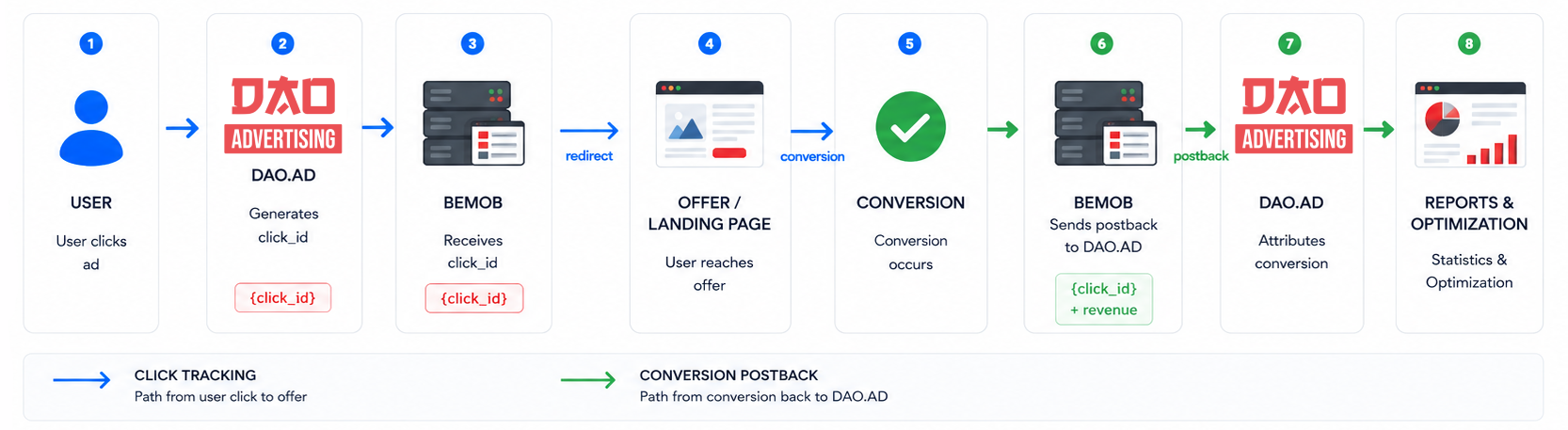
Bemob Tracking Flow
Steps
- Sign in to Bemob.
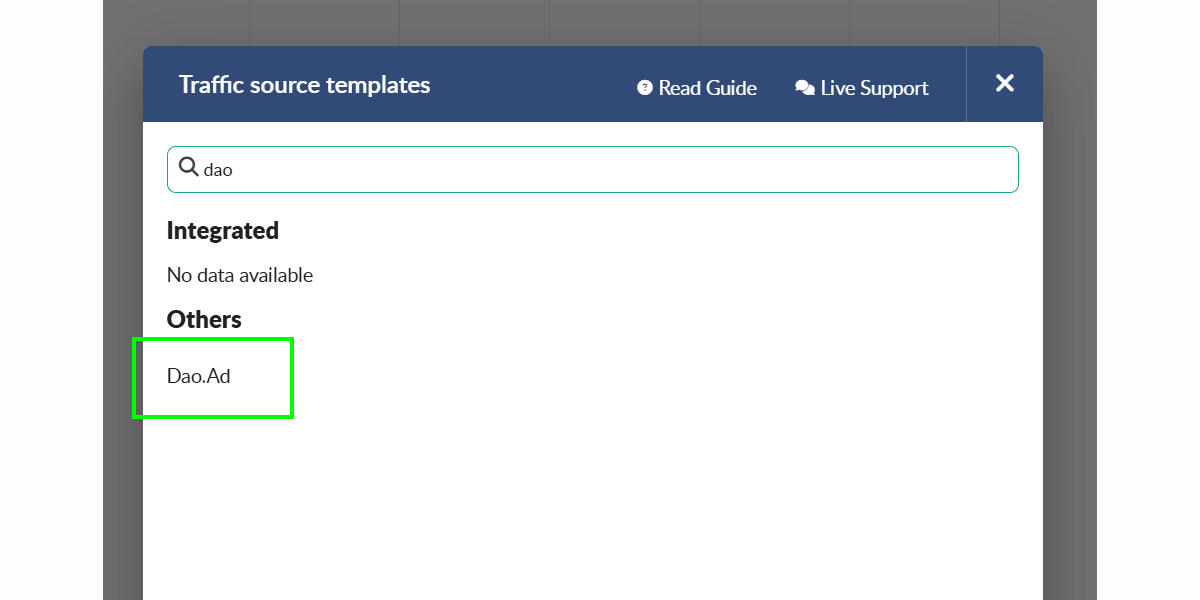
- Open the "Traffic sources" menu and select "New from template".

- Find "DAO.AD" in the list of predefined templates.

- Replace the placeholder API key with your DAO.AD API key from your DAO.AD Profile page and click Save.

- Go to "Campaigns" menu in Bemob.
- Create a campaign connected to your offer or landing page.
- Select the previously created "DAO.AD" traffic source.

- Copy the Campaign URL by clicking the copy icon next to the Campaign URL field.

- Paste the Bemob Campaign URL into the DAO.AD Creative URL field and click Save.
How It Works
- DAO.AD generates a unique click ID and passes it to Bemob.
- Bemob stores the click ID and redirects the user to your offer.
- When a conversion occurs, Bemob sends a postback to DAO.AD containing the original click ID and conversion value.
This allows DAO.AD to attribute conversions to the correct traffic source and optimize campaign performance.
Related
- Binom
- Tracking Parameters
- Postback Parameters
- Test a Conversion (HTTP Examples)
- Tracking Configuration Models
- Micro-bidding Tool
Test a Conversion (HTTP Examples)
Summary
This guide explains how to manually test a conversion postback using a web browser or HTTP request tools. It helps verify that your tracking configuration is working correctly before launching a campaign.
When should you use this?
Use conversion testing when:
- Setting up a new CPA network
- Configuring Keitaro, Binom, Voluum, or another tracker
- Verifying postback parameters
- Troubleshooting missing conversions
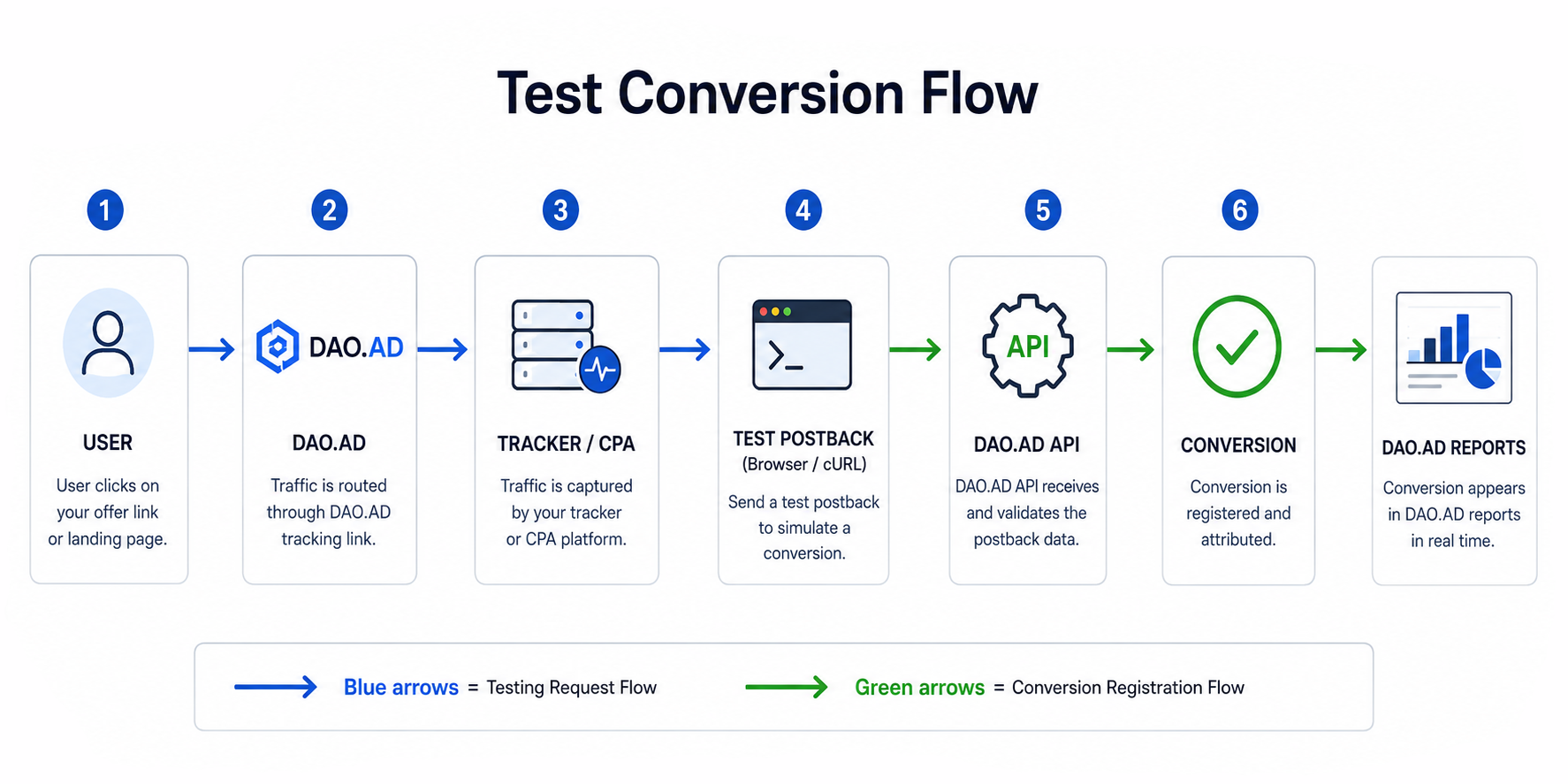
Example DAO.AD Postback URL
http://api.daopush-api.info/api/postback/campaign?
key=YOUR_API_KEY
&sum=1
&click-id=123456789
&type=mainParameter explanation:
| Parameter | Example | Description |
|---|---|---|
| key | YOUR_API_KEY | DAO.AD API key |
| sum | 1 | Conversion payout |
| click-id | 123456789 | Original click ID |
| type | main | Conversion type |
Method 1: Browser Test
Simply open the URL in your browser:
http://api.daopush-api.info/api/postback/campaign?key=YOUR_API_KEY&sum=1&click-id=123456789&type=mainExpected result:
{"status":"success"}or similar success response.
Method 2: cURL Example
Linux / macOS / Windows Terminal
curl "http://api.daopush-api.info/api/postback/campaign?key=YOUR_API_KEY&sum=1&click-id=123456789&type=main"Expected result:
{"status":"success"}Method 3: Keitaro Test
- Open the campaign.
- Find a real Click ID.
- Replace
{external_id}with that Click ID. - Send the postback manually.
- Verify that the conversion appears in DAO.AD statistics.
Method 4: Binom Test
- Open Click Log.
- Copy a valid Click ID.
- Execute the postback URL manually.
- Check DAO.AD Reports.
Common Errors
Invalid API Key
{"status":"error","message":"invalid key"}Solution:
Verify the API key from your DAO.AD Profile page.
Missing Click ID
{"status":"error","message":"click-id not found"}Solution:
Use a valid Click ID generated by DAO.AD.
Duplicate Conversion
{"status":"error","message":"duplicate conversion"}Solution:
Check the TTL parameter or use a new Click ID.