# Micro-bidding Tool
##### Summary
Use the Micro-bidding Tool to assign different bids to specific Source IDs or Sub IDs.
##### Before You Begin
- Role: Advertiser
- Required information:
- source IDs and/or Sub IDs
- Estimated time: 2-4 minutes
##### Steps
1. Locate the **Black/Whitelist** section and the Micro-bidding Rules field.
2. Click **Add bid rule** to create a new bidding rule.

3. Enter the Source IDs or Sub IDs and set a custom bid for them.
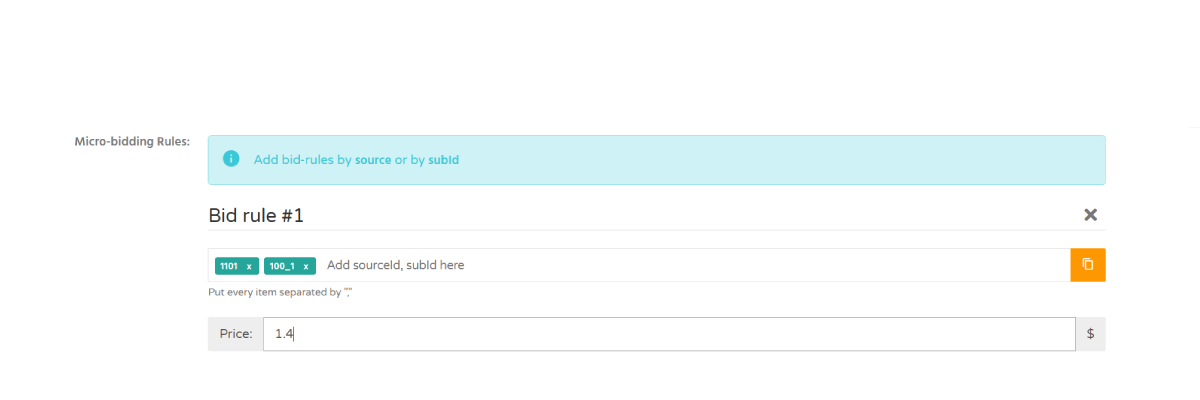**Information:** Micro-bidding rules override the default campaign bid for the specified Source IDs or Sub IDs.
4. Repeat the process to create additional bidding rules if needed.
##### Troubleshooting
**Issue:** I don't know the Source IDs or Sub IDs
**Solution:**
- use the `{source_id}` and `{sub_id}` parameters in your tracking URL or postback to identify traffic sources and sub-sources.
##### Verification
After saving the campaign, the configured source IDs or sub-source IDs will appear in the corresponding bid-rule field.
##### Related
- [Blacklist and Whitelist Targeting](https://wiki.dao.ad/books/optimization-reporting/page/blacklist-and-whitelist-targeting "Blacklist and Whitelist Targeting")
- [Traffic volume and bid recommendations](https://dao.ad/en/traffic-volumes)
- [Automatic Rules for Blacklisting](https://wiki.dao.ad/books/optimization-reporting/page/automatic-rules-for-blacklisting "Automatic Rules for Blacklisting")