# Export Reports to CSV
##### Summary
Learn how to export campaign statistics from DAO.AD into a CSV file for reporting and optimization purposes.
Exported CSV files can be used for offline reporting, campaign analysis, custom dashboards, and data processing in tools such as Microsoft Excel, Google Sheets, or BI platforms.
##### Before You Begin
- Role: Advertiser
- Estimated time: 2 minutes
##### Steps
1. Open the Statistics section from the top navigation menu and select the desired ad format.
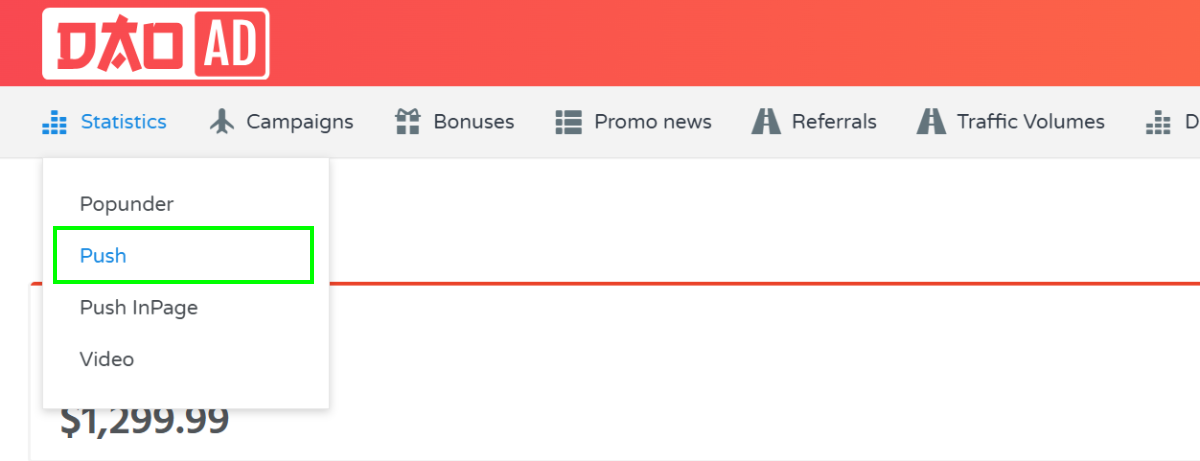
2. Apply the desired filters, date range, and grouping options.
3. Click the ****Export to CSV**** button located next to the filter section.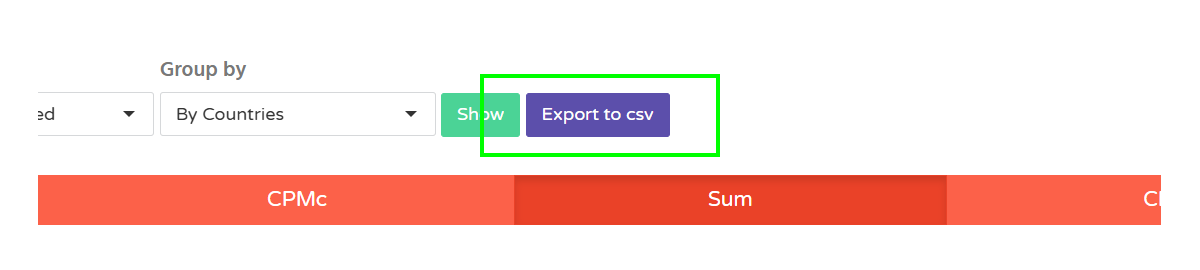
4. Select the preferred export options. Select Separator and Encoding and click ****Export to csv****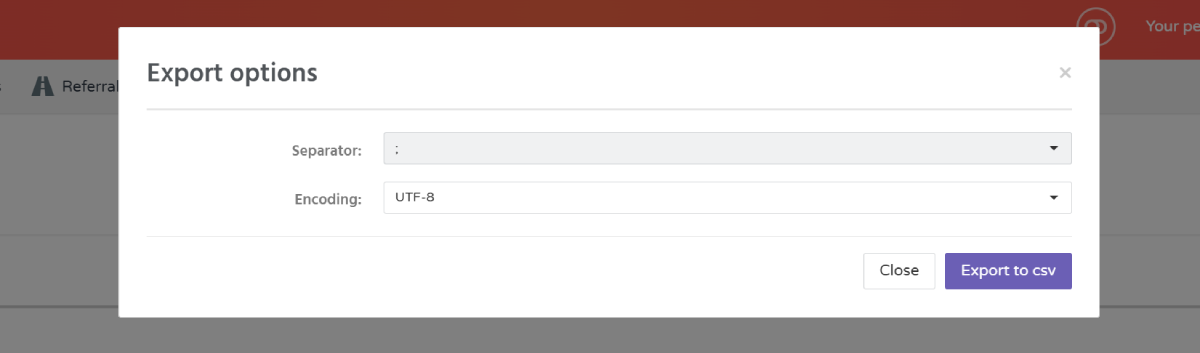
##### Related
- [Statistics Overview](https://wiki.dao.ad/books/optimization-reporting/page/statistics-overview "Statistics Overview")
- [Statistics KPI](https://wiki.dao.ad/books/optimization-reporting/page/statistics-kpi "Statistics KPI")
- [Micro-bidding Tool](https://wiki.dao.ad/books/optimization-reporting/page/micro-bidding-tool "Micro-bidding Tool")
- [Automatic Rules for Blacklisting](https://wiki.dao.ad/books/optimization-reporting/page/automatic-rules-for-blacklisting "Automatic Rules for Blacklisting")