****Important!**** JavaScript code is available only for Site traffic sources. If your source type is Link, create and approve a Site Source before continuing.
##### Steps 1. Open your approved Site source of Inpage Push. After your Site Source has been approved, navigate to Sources - Push InPage and open the source you want to use. 2. Open the Code page and click Code to open the JavaScript code configuration settings. 3. Configure the following parameters: \- Type - Choose how the JavaScript code will be generated. Download Script - Downloads a JavaScript file that must be uploaded to your website's root directory. Inject Script - Displays the JavaScript code that can be copied and pasted directly into your website. \- Position Y - Choose whether the In-Page Push notification appears at the top or bottom of the screen. \- Position X - Choose whether the notification appears on the left or right side of the screen. \- Max Ad Count - Maximum number of In-Page Push messages displayed on the same time. \- Delay Before First Show - Time (in seconds) before the first In-Page Push message is displayed. \- Delay Before Next Show - Time (in seconds) before the next message is displayed. \- Renew Ad Interval - Time (in seconds) before the current advertisement is refreshed. \- Pulse Interval - Time interval (in seconds) between pulse animations. 4. You can also customize the appearance and behavior of your In-Page Push message using the settings below.[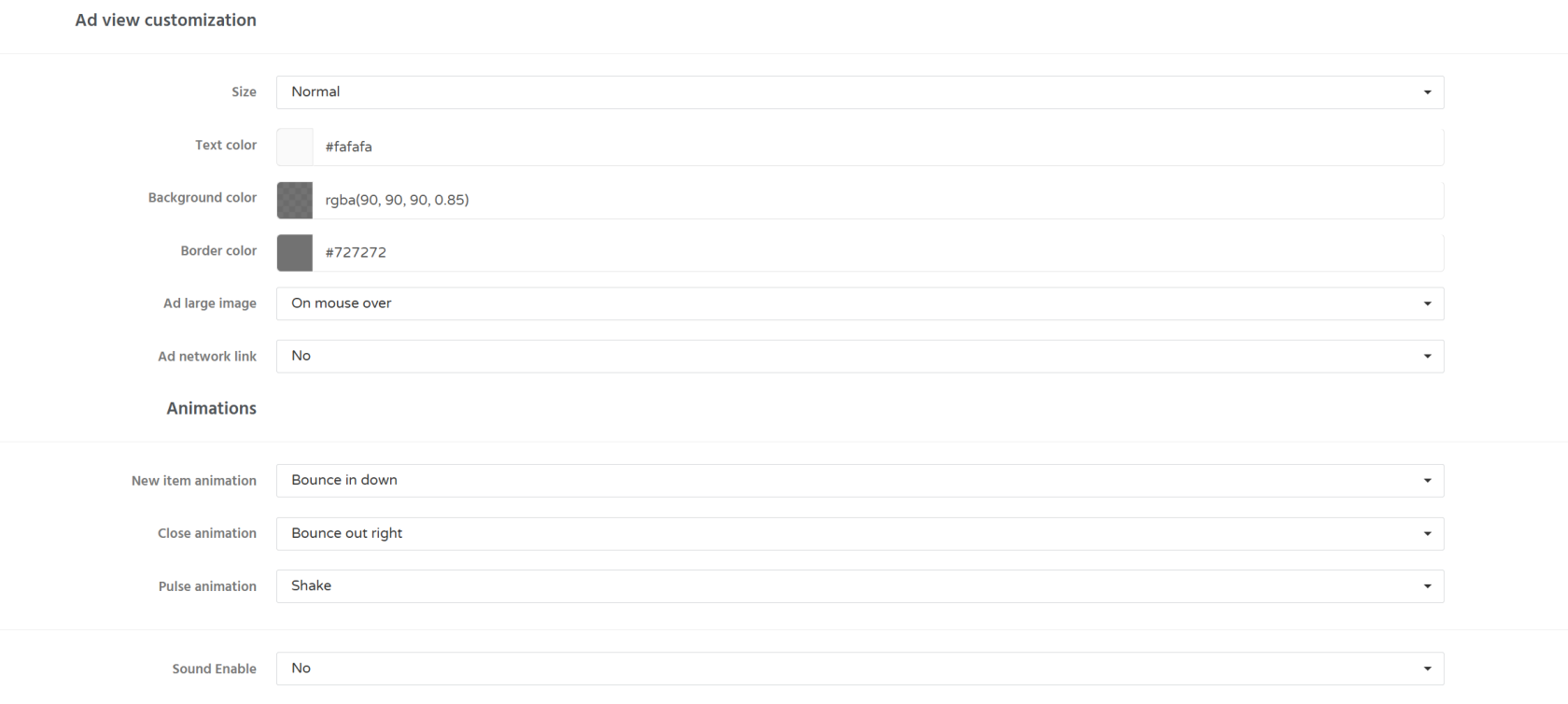](https://wiki.dao.ad/uploads/images/gallery/2026-07/cXPimage.png) 5. Download the generated code archive, extract it, and upload the script files to your website's root directory. 6. Subscriber collection begins once visitors allow push notifications on your website. ##### Troubleshooting ****Issue:**** The downloaded script does not work. ****Solutions:**** Check whether a VPN, browser extension, or another JavaScript library is preventing the script from loading correctly. ##### Related - [Site vs Link](https://wiki.dao.ad/books/getting-started-QiA/page/site-vs-link "Site vs Link") - [Create a Site Source](https://wiki.dao.ad/books/getting-started-QiA/page/create-a-site-source "Create a Site Source") - [Site/App Approval](https://wiki.dao.ad/books/getting-started-QiA/page/siteapp-approval "Site/App Approval") - [Placement Rules](https://wiki.dao.ad/books/getting-started-QiA/page/placement-rules "Placement Rules")