**Information:** All newly created campaigns are set to Paused by default to prevent unintended traffic spending.
4\. Scroll down to configure the remaining campaign settings and save the campaign. ##### Troubleshooting **Issue:** Campaigns menu is missing **Solutions:** If you do not see the Campaigns menu, your account may be registered as a Webmaster account. Contact [DAO.AD Support](https://dao.ad/en/support) for assistance. **Issue:** Unable to select a different campaign mode **Solution:** DAO.AD Push campaigns currently support only the CPC pricing model. ##### Related - [Create an in-page push campaign](https://wiki.dao.ad/books/getting-started/page/create-an-in-page-push-campaign "Create an in-page push campaign") - [Targeting by country](https://wiki.dao.ad/books/getting-started/page/targeting-by-country "Targeting by country") - [Blacklist and Whitelist Targeting](https://wiki.dao.ad/books/optimization-reporting/page/blacklist-and-whitelist-targeting "Blacklist and Whitelist Targeting") - [Create Creative Push and Inpage Push](https://wiki.dao.ad/books/creatives-moderation/page/create-creative-push-and-inpage-push "Create Creative Push and Inpage Push") # Create an in-page push campaign ##### Summary Create your advertising campaign and start buying traffic on DAO.AD. ##### Before You Begin - Role: Advertiser. - Required information: - Campaign name - Campaign pricing model - Estimated time: 7-10 minutes ##### Steps 1. In the top menu, go to *Campaigns → Push InPage.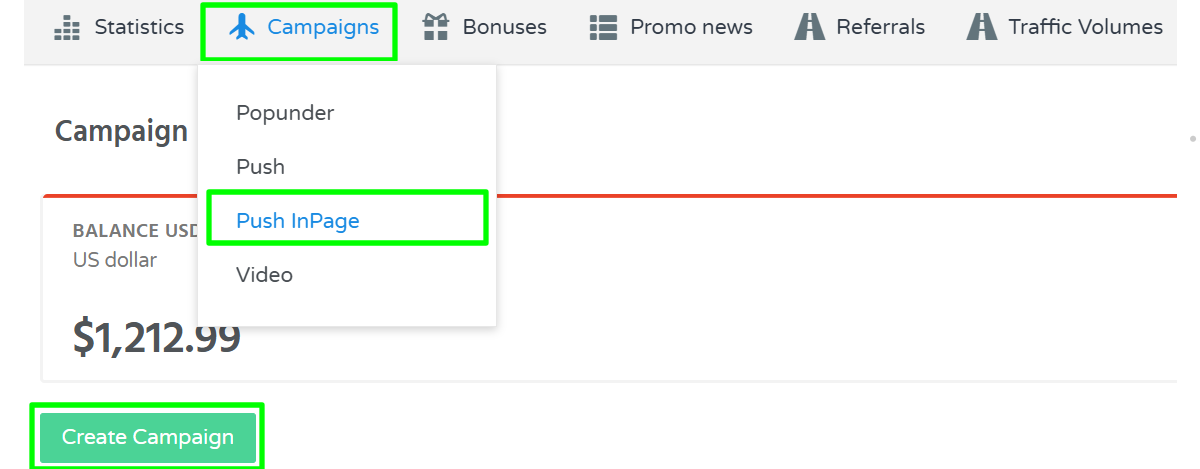* 2. Click the "Create Campaign" button. 3. Enter the campaign name and select the campaign mode. 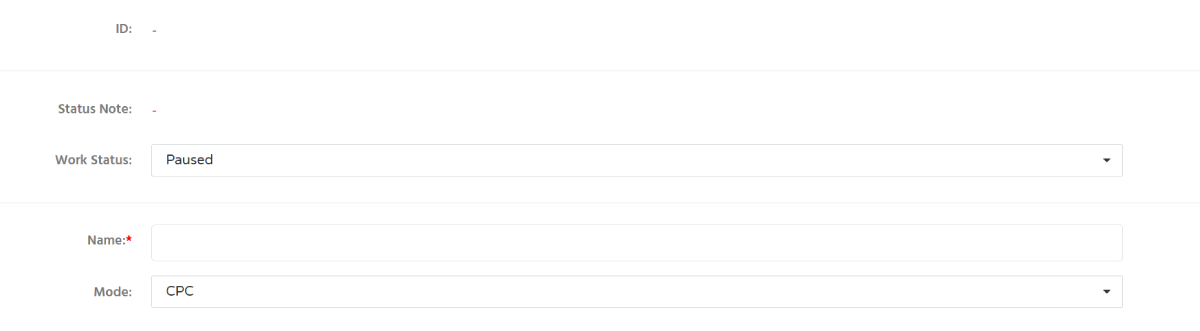**Information:** All newly created campaigns are set to Paused by default to prevent unintended traffic spending.
4\. Scroll down to configure the remaining campaign settings and save the campaign. ##### Troubleshooting **Issue:** Campaigns menu is missing **Solutions:** If you do not see the Campaigns menu, your account may be registered as a Webmaster account. Contact [DAO.AD Support](https://dao.ad/en/support) for assistance. **Issue:** Unable to select a different campaign mode **Solution:** DAO.AD Push In-Page campaigns currently support only the [CPC pricing model](https://wiki.dao.ad/books/terms-a-c/page/cpc "CPC"). ##### Related - [Create a push campaign](https://wiki.dao.ad/books/getting-started/page/create-a-push-campaign "Create a push campaign") - [Targeting by country](https://wiki.dao.ad/books/getting-started/page/targeting-by-country "Targeting by country") - [Blacklist and Whitelist Targeting](https://wiki.dao.ad/books/optimization-reporting/page/blacklist-and-whitelist-targeting "Blacklist and Whitelist Targeting") - [Create Creative Push and Inpage Push](https://wiki.dao.ad/books/creatives-moderation/page/create-creative-push-and-inpage-push "Create Creative Push and Inpage Push") # Create a Pop Campaign ##### Summary Unlike push campaigns, Pop campaigns do not require graphical creatives. A Pop campaign only requires a valid destination URL that will be opened when the advertisement is triggered. ##### Before You Begin - Role: Advertiser. - Required information: - Destination URL - Estimated time: 10 minutes ##### Steps 1. Navigate to Campaigns and select Popunder from the campaign type list. 2. Click the Create Campaign button. 3. Enter the campaign name and destination URL, then select the appropriate tracking template.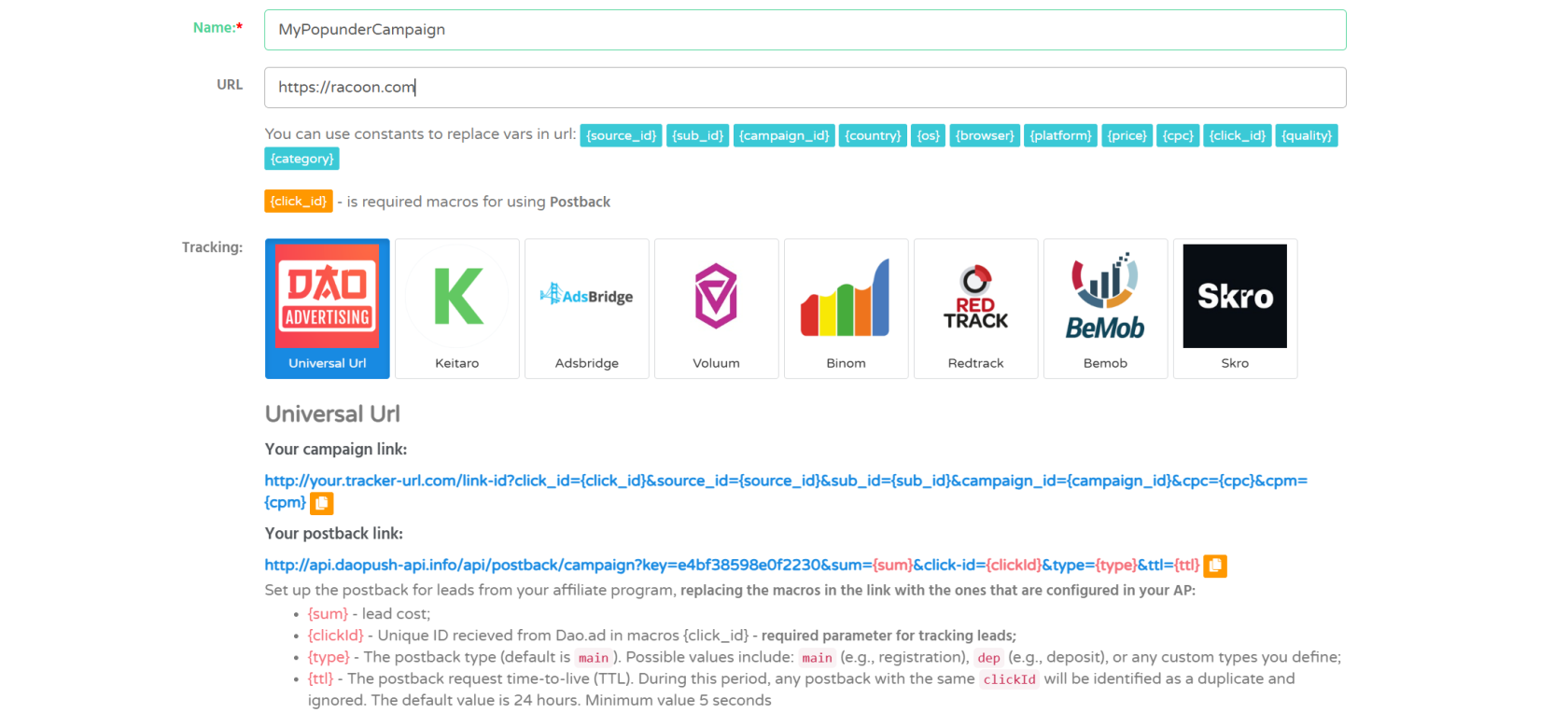 4. Configure your targeting options and bidding settings. 5. Configure the [Smart Type settings](https://wiki.dao.ad/books/terms-p-t/page/smart-type "Smart Type"), if required. Available options [Smart CPM](https://wiki.dao.ad/books/terms-p-t/page/smart-cpm "Smart CPM") and [CPA Goal](https://wiki.dao.ad/books/terms-a-c/page/cpa-goal "CPA Goal"). 6. Save the campaign. Once submitted, it will be reviewed by the DAO.AD moderation team. ##### Troubleshooting **Issue:** Unable to save the campaign. **Solutions:** - Verify that all required campaign settings are configured. - Ensure that all required fields, including Campaign Name, Destination URL, and Bid, are completed. - If the issue persists, contact DAO.AD Support. ##### Related - [Creative Guidelines](https://wiki.dao.ad/books/creatives-moderation/page/prohibited-content-policy "Prohibited Content Policy") - [Create Creative Push and Inpage Push](https://wiki.dao.ad/books/creatives-moderation/page/create-creative-push-and-inpage-push "Create Creative Push and Inpage Push") - [Terms of Use](https://dao.ad/terms-use) # Create Video Campaign ##### Summary Learn how to create a Video campaign in DAO.AD by uploading a video creative and configuring campaign settings. ##### Before You Begin - Role: Advertiser. - Required information: - Video creative - Destination URL - Estimated time: 5-10 minutes ##### Steps 1. Navigate to Campaigns and select Video from the campaign type list. 2. Click the Create Campaign button. 3. Enter the campaign name and keep **Default** selected as the campaign source type. 4. Configure your targeting options and bidding settings. 5. Set the Black list or White list, if needs. Check the [Domain Volume Video](https://wiki.dao.ad/books/getting-started/page/domain-volumes-video "Domain Volumes Video") to get the list of sources you wish target to. 6. Scroll down to the Select creative block and click Add creative. 7. Enter a creative title and select **Video** as the creative type. 8. Upload your video file from your computer. DAO.AD automatically generates all supported aspect ratios required for video placements. 9. Enter the destination URL. You may also include tracking parameters or macros if required.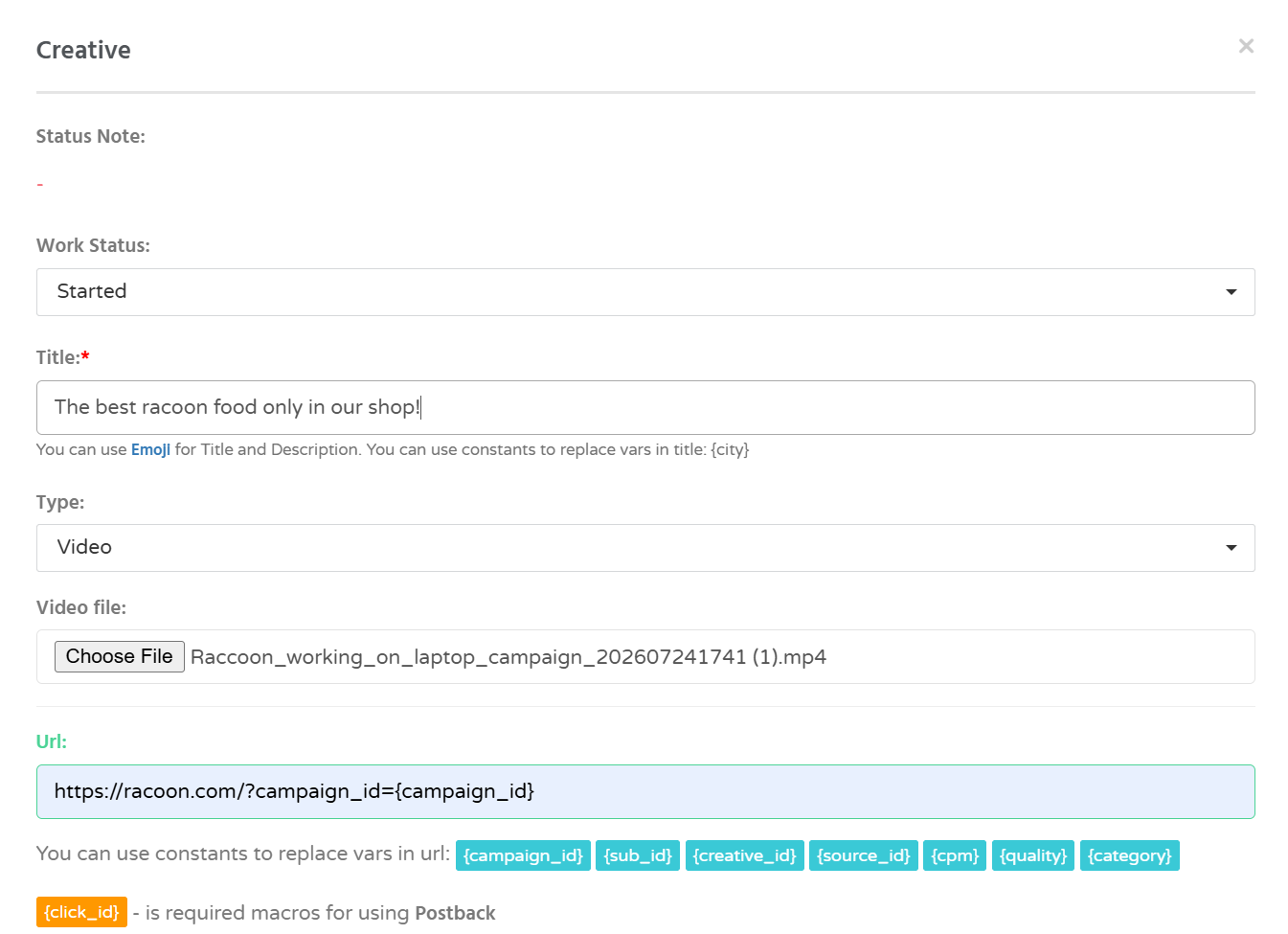 10. Save the campaign. Once submitted, it will be reviewed by the DAO.AD moderation team. 11. Once uploaded, the creative will appear in the Creatives section of your campaign. 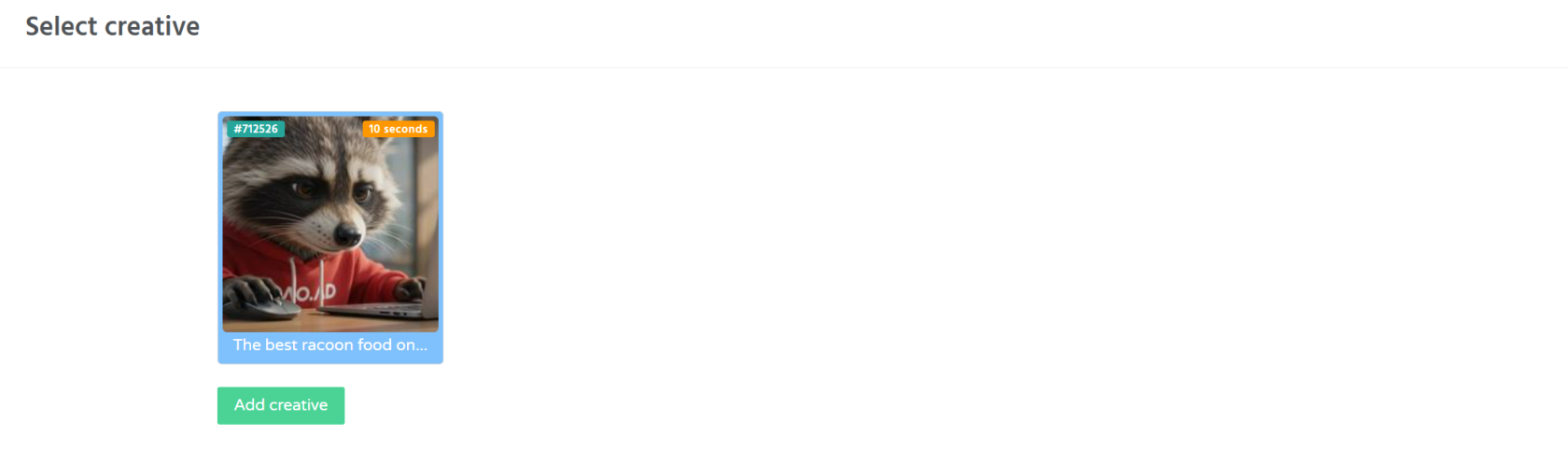 12. Save the campaign and wait for the moderation process to complete.**Note**: Video campaigns support **Sum per Source**, allowing you to define the maximum budget that can be spent on each individual traffic source.
##### Troubleshooting **Issue:** My ads does not receive traffic. **Solutions** - Verify that the video creative has been uploaded successfully. - Verify that the destination URL is valid. - Ensure that the campaign status is **Active**. - Ensure that your account balance is sufficient. - Verify that your targeting settings are not overly restrictive. ##### Related - [Create VAST link](https://wiki.dao.ad/books/creatives-moderation/page/create-vast-link "Create VAST Link") - [Create Youtube Campaign](https://wiki.dao.ad/books/creatives-moderation/page/create-youtube-link "Create Youtube Link") - [Examples of good creatives](https://wiki.dao.ad/books/creatives-moderation/page/examples-of-good-creatives "Examples of good creatives") - [Tracking Configuration Models](https://wiki.dao.ad/books/tracking-postback/page/tracking-configuration-models "Tracking Configuration Models") - [Domain Volumes Video](https://wiki.dao.ad/books/getting-started/page/domain-volumes-video "Domain Volumes Video") # Targeting by country ##### Summary Country targeting allows you to receive traffic from specific countries or predefined country groups. ##### Before You Begin - Role: Advertiser - Required information: - country names, ISO country codes, or predefined country groups - Estimated time: 1-3 minutes ##### Steps 1. On the campaign creation page, locate the Targeting section and the Country block. 2. You can configure countries using one of the following methods. **Option 1: Enter country names or ISO codes** - enter one or more country names or ISO two-letter country codes separated by commas, then click Apply.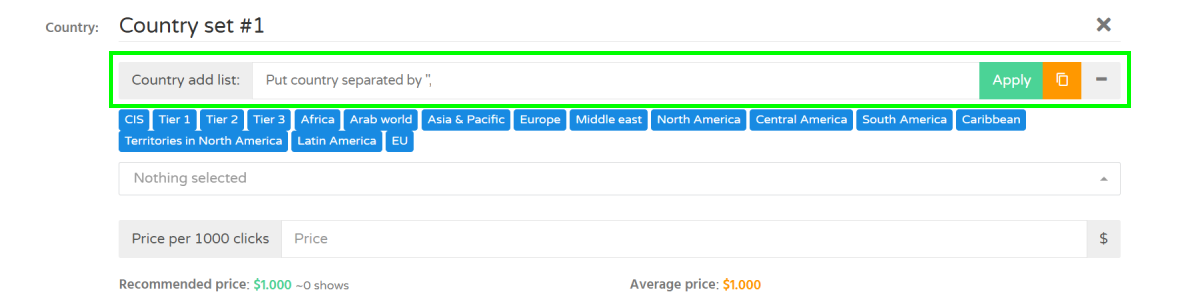 - Update the country set by selecting one of the following options: **Add items** - adds the selected countries to the current list; **Replace items** - replaces the current list with the selected countries.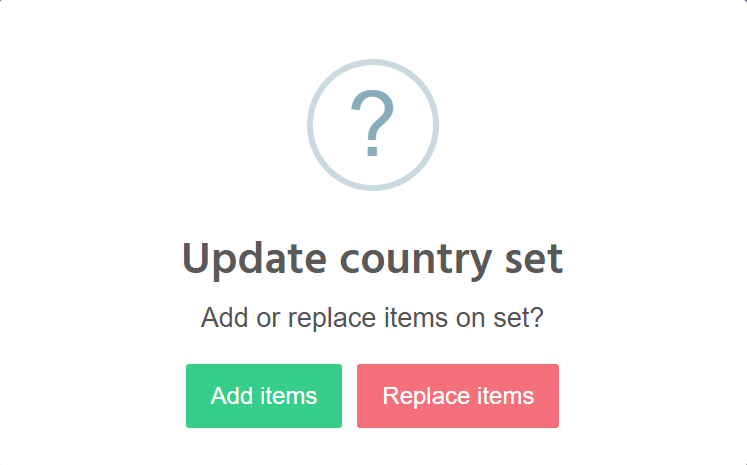 **Option 2: Use predefined country groups** - select one of the predefined country groups available in the system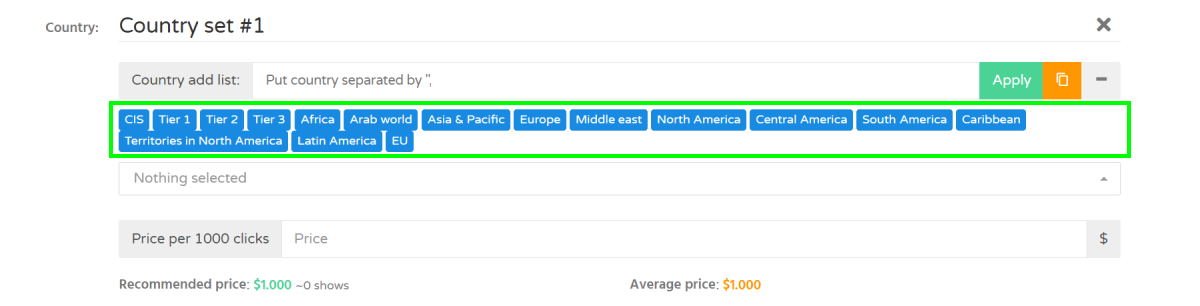 - Update the country set by choosing **Add items** or **Replace items** Option 3: Select countries from the dropdown list** - Select countries individually from the dropdown list[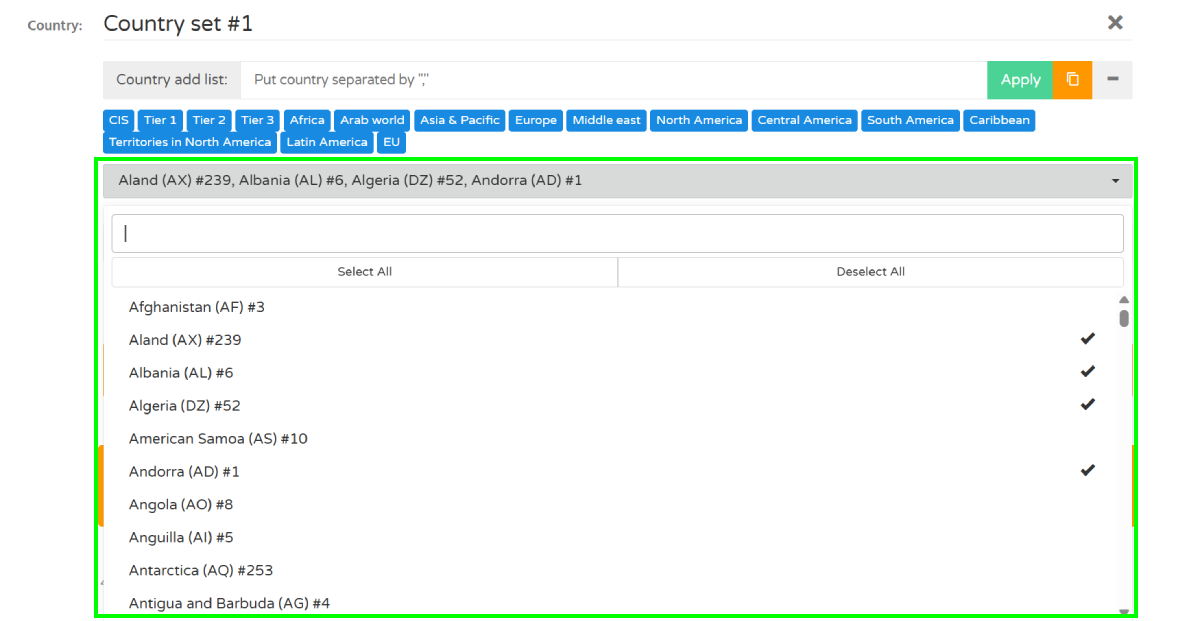](https://wiki.dao.ad/uploads/images/gallery/2026-05/country-set-3-v290526.png) - changes are applied automatically 3\. Enter the bid value for the selected country set. Price per 1000 clicks 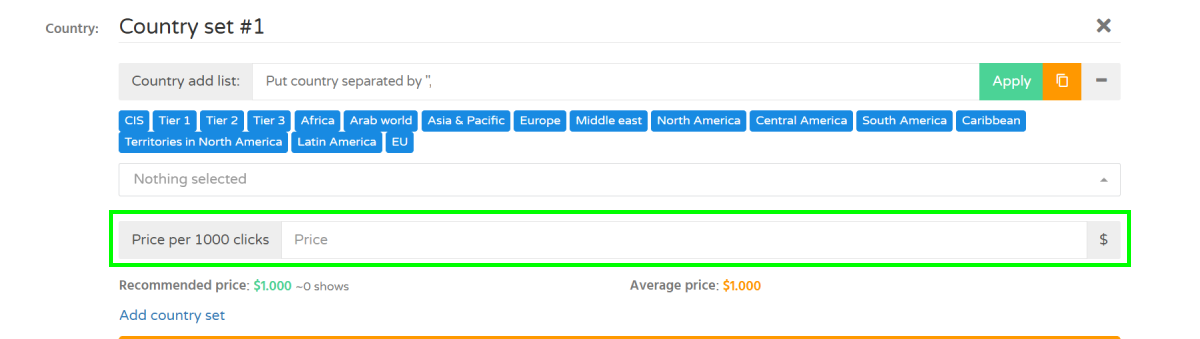You can create up to 10 country sets within a single campaign. Use **Add Country Set** to assign different bids to different GEO groups.
##### Troubleshooting **Issue:** Country not found **Solutions:** If you can not find country name - verify the country's ISO two-letter code. - make sure the country name is entered in English using Latin characters. **Issue:** Selected countries are not receiving traffic **Solution:** - Verify that the campaign status is Active. - Check your bid amount. - Make sure the selected countries contain available traffic. - Review other targeting restrictions such as OS, browser, or whitelist settings. ##### Related - [Targeting by operating system](https://wiki.dao.ad/books/getting-started/page/targeting-by-operating-system "Targeting by operation system") - [Traffic volume and bid recomendations](https://dao.ad/en/traffic-volumes) - [Targeting by vertical](https://wiki.dao.ad/books/getting-started/page/targeting-by-vertical "Targeting by Vertical") - [Micro-bidding Tool](https://wiki.dao.ad/books/optimization-reporting/page/micro-bidding-tool "Micro-bidding Tool") # Targeting by operating system ##### Summary Targeting by Operating System allows you to receive traffic from specific users who have targeted operational systems. ##### Before You Begin - Role: Advertiser - Required information: - selected operating systems - Estimated time: 1 minute ##### Steps 1. On the campaign creation page, locate the Targeting section and the User OS block. 2. Select one or more operating systems from the dropdown list. 3. Select one or more operating systems. 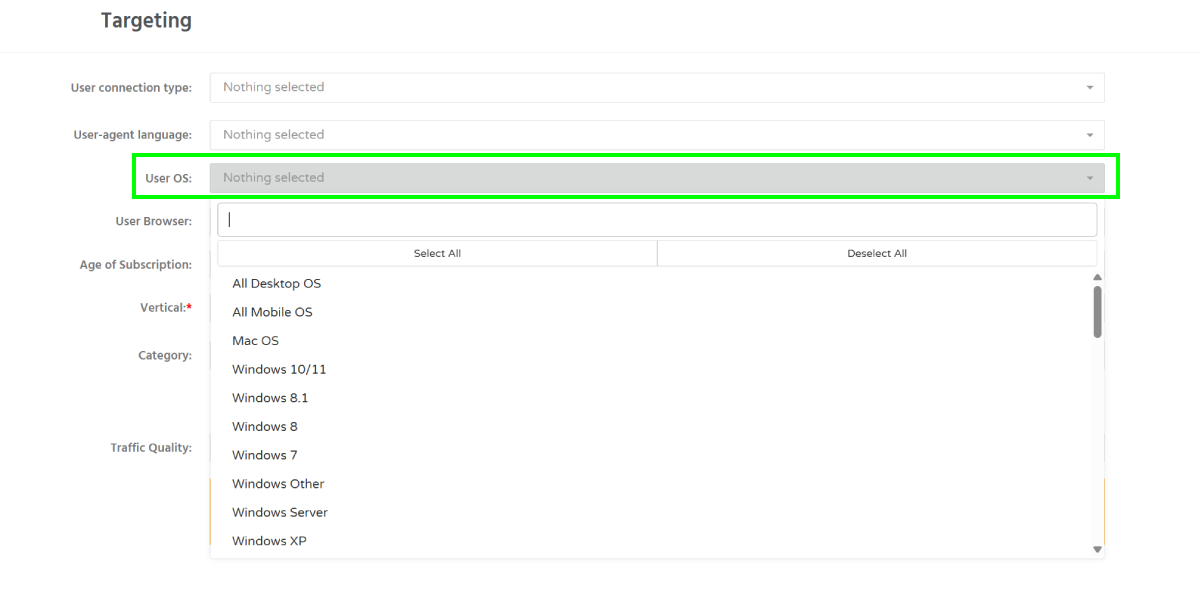**Information:** Use **All Desktop OS** to target all desktop operating systems. Use **All Mobile OS** to target all mobile operating systems.
##### Troubleshooting **Issue:** Selected operating systems are not receiving traffic **Solution:** - Verify that the campaign status is Active. - Check your bid amount. - Make sure traffic is available for the selected operating systems. - Review other targeting restrictions such as countries, browser, or whitelist settings. ##### Related - [Targeting by browser](https://wiki.dao.ad/books/getting-started/page/targeting-by-browser "Targeting by browser") - [Traffic volume and bid recommendations](https://dao.ad/en/traffic-volumes) - [Targeting by country](https://wiki.dao.ad/books/getting-started/page/targeting-by-country "Targeting by country") # Targeting by browser ##### Summary Browser targeting allows you to receive traffic from users who use specific web browsers. ##### Before You Begin - Role: Advertiser - Required information: - selected web browsers - Estimated time: 2 minute ##### Steps 1. On the campaign creation page, locate the Targeting section and the User Browser block. 2. Select one or more browsers from the dropdown list. 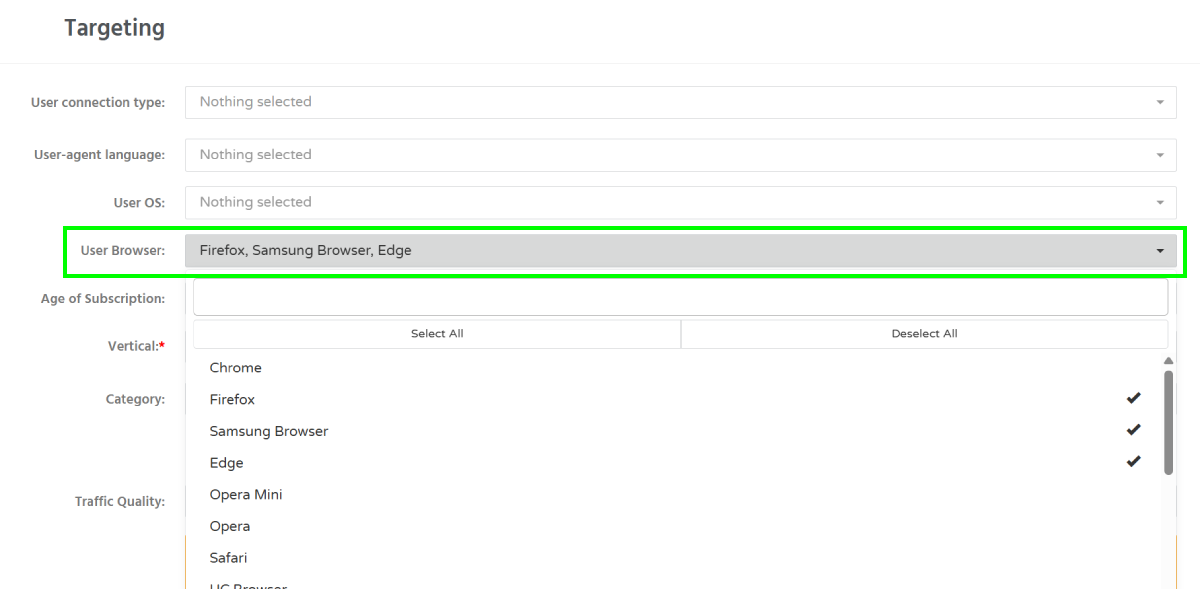 ##### Troubleshooting **Issue:** Selected browsers are not receiving traffic **Solution:** - Verify that the campaign status is Active. - Check your bid amount. - Make sure traffic is available for the selected browsers. - Review other targeting restrictions, including [operating system](https://wiki.dao.ad/books/getting-started/page/targeting-by-operating-system "Targeting by operation system"), [GEO targeting](https://wiki.dao.ad/books/getting-started/page/targeting-by-country "Targeting by country"), and whitelist settings. ##### Related - [Targeting by vertical](https://wiki.dao.ad/books/getting-started/page/targeting-by-vertical "Targeting by Vertical") - [Traffic volume and bid recommendations](https://dao.ad/en/traffic-volumes) - [Targetting by operating system](https://wiki.dao.ad/books/getting-started/page/targeting-by-operating-system "Targeting by operating system") - [Fund Your Account](https://wiki.dao.ad/books/billing/page/fund-your-account "Fund Your Account") # Targeting by vertical ##### Summary Use vertical targeting to receive traffic from publishers whose audience matches selected verticals. ##### Before You Begin - Role: Advertiser - Required information: - selected verticals - Estimated time: 1 minute ##### Steps 1. On the campaign creation page, locate the Targeting section and the Vertical field. 2. Select one or more verticals from the dropdown list. 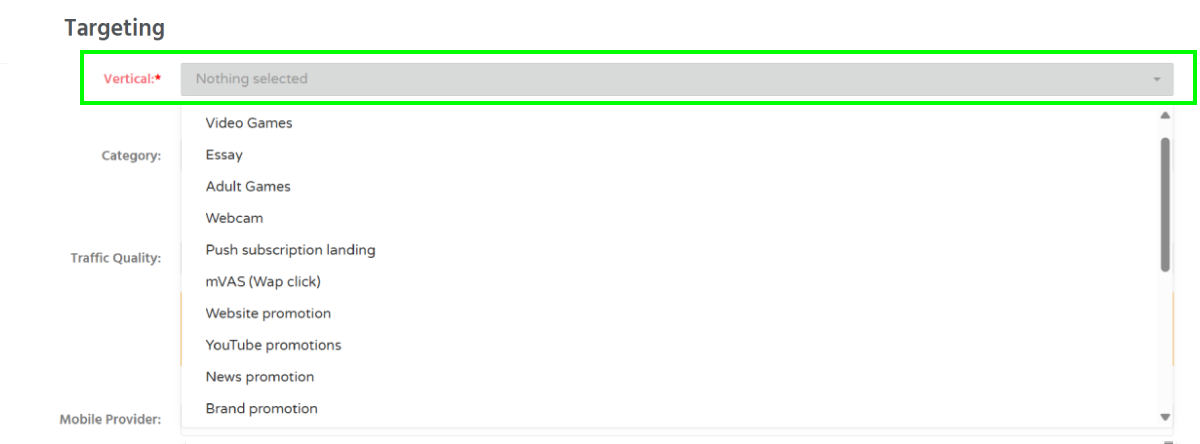 ##### Troubleshooting **Issue:** Unable to select multiple verticals **Solution:** - to target multiple verticals, select Mix at the bottom of the dropdown list. ##### Related - [Targeting by country](https://wiki.dao.ad/books/getting-started/page/targeting-by-country "Targeting by country") - [Traffic volume and bid recommendations](https://dao.ad/en/traffic-volumes) - [Targeting by operating system](https://wiki.dao.ad/books/getting-started/page/targeting-by-operating-system "Targeting by operation system") # Targeting by age of subscription ##### Summary Subscription age targeting allows you to receive traffic from users based on the age of their push subscription. ##### Before You Begin - Role: Advertiser - Required information: - subscription age range - available for Push campaigns only - Estimated time: 1 minute ##### Steps 1. On the campaign creation page, locate the Targeting section and the **Age of subsciption** field. 2. Select one or more subscription age ranges from the dropdown list. 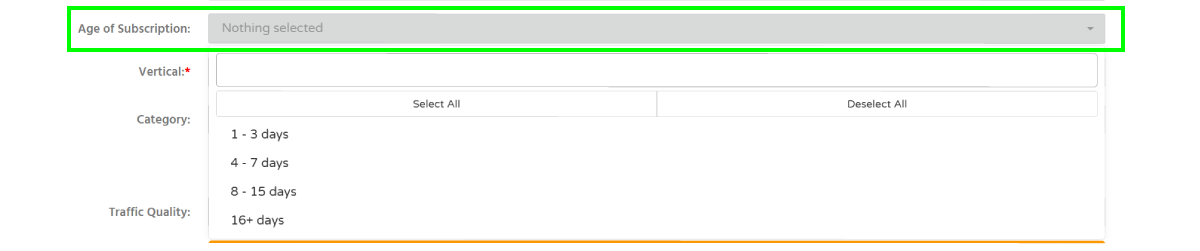**Information:** you can target users with subscription ages of 1-3, 4-7, 8-15, or 16+ days. Subscription age is calculated from the date when a user subscribed to push notifications.
##### Troubleshooting **Issue:** Unable to select custom subsription age. **Solution:** - only the predefined subscription age ranges available in the dropdown list can be selected. ##### Verification After saving the campaign, the selected categories and traffic quality levels will appear in the campaign targeting settings. ##### Related - [Targeting by country](https://wiki.dao.ad/books/getting-started/page/targeting-by-country "Targeting by country") - [Targeting by operating system](https://wiki.dao.ad/books/getting-started/page/targeting-by-operating-system "Targeting by operation system") - [Targeting by vertical](https://wiki.dao.ad/books/getting-started/page/targeting-by-vertical "Targeting by vertical") # Targeting by traffic quality and category ##### Summary Traffic Quality targeting allows you to select the quality level of incoming traffic. Category targeting allows you to filter traffic sources by content category, such as [**Mainstream**](https://wiki.dao.ad/books/terms-l-o/page/mainstream "Mainstream"), [**Racy**](https://wiki.dao.ad/books/terms-p-t/page/racy "Racy"), or [**Adult**](https://wiki.dao.ad/books/terms-a-c/page/adult "Adult"). ##### Before You Begin - Role: Advertiser - Required information: - traffic quality - traffic category - Estimated time: 1 minute ##### Steps 1. On the campaign creation page, locate the Targeting section and the **Category** field. 2. Select one or more categories from the dropdown list. [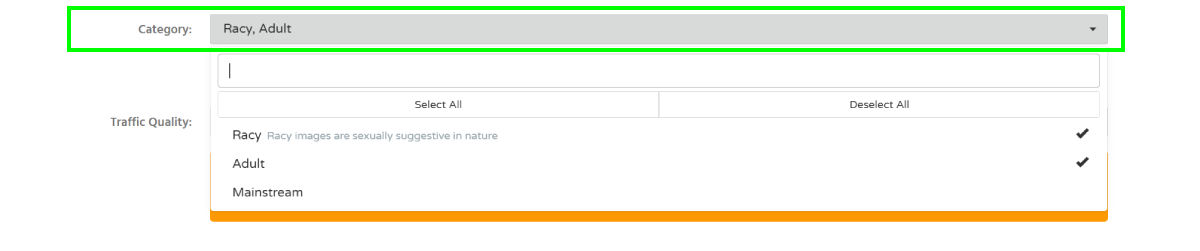](https://wiki.dao.ad/uploads/images/gallery/2026-05/rUAtarget-category-v310526.png)**Information:** Racy content may contain sexually suggestive material but is generally less explicit than Adult content.
3. Select one or more traffic quality levels from the dropdown list. 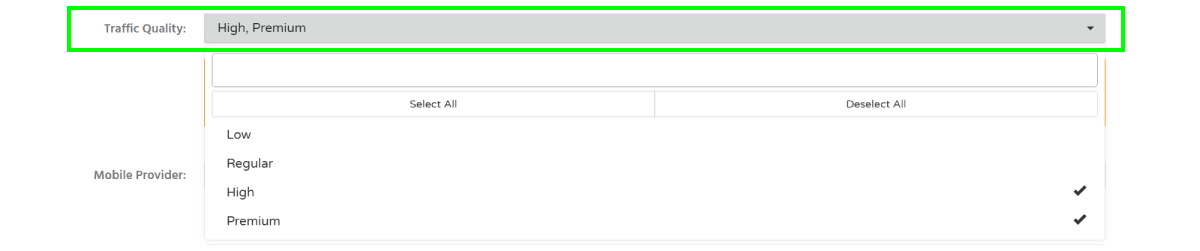We recommend using High or Premium traffic quality for better performance.
##### Troubleshooting **Issue:** My creatives were rejected due to prohibited content. **Solution:** - if your creatives contain adult or sexually suggestive content, make sure the appropriate traffic category (Adult or Racy) is selected. ##### Verification After saving the campaign, the selected categories and traffic quality levels will appear in the campaign targeting settings. ##### Related - [Traffic Type](https://wiki.dao.ad/books/terms-p-t/page/traffic-type "Traffic Type") - [Targeting by country](https://wiki.dao.ad/books/getting-started/page/targeting-by-country "Targeting by country") - [Targeting by operating system](https://wiki.dao.ad/books/getting-started/page/targeting-by-operating-system "Targeting by operation system") - [Targeting by vertical](https://wiki.dao.ad/books/getting-started/page/targeting-by-vertical "Targeting by vertical") - [Create an in-page push campaign](https://wiki.dao.ad/books/getting-started/page/create-an-in-page-push-campaign "Create an in-page push campaign") # Campaign Limits and Capping ##### Summary Use campaign limits to control your budget and traffic volume. DAO.AD allows you to configure daily and total limits for clicks, impressions, and campaign spend. ##### Before You Begin - Role: Advertiser - Estimated time: ~2 minutes ##### Steps 1. Locate the **Limits** section at the bottom of the page. 2. Available settings: \- Frequency Capping - сontrols how many times a unique user can see your push advertisement within 24 hours; \- Limit on charge - total budget for this ad campaign \- Limit on shows - maximum number of impressions for this campaign \- Limit on clicks - total clicks for this ad campaign 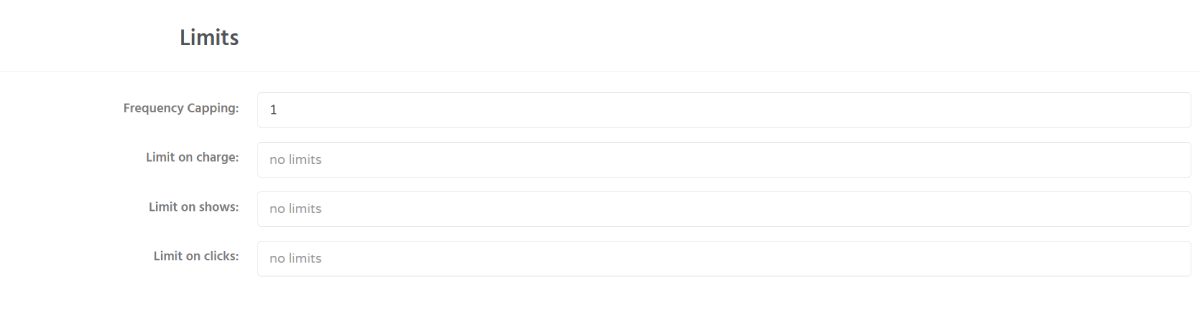**Information:** We recommend setting limits slightly higher than your target values. Push notifications may still generate impressions or clicks after delivery has already been initiated
3. The following daily limits can be configured: \- Limit on charge - total budget for this ad campaign \- Limit on shows - total impressions for this ad campaign \- Limit on clicks - total clicks for this ad campaign**Feature:** You can also configure click and budget limits for individual traffic sources.
##### Troubleshooting **Issue:** campaign spend exceeded the configured budget **Solution:** - Push notifications are not always delivered instantly. Users may still generate impressions or clicks after a campaign limit has been reached. For this reason, small budget or traffic overruns may occasionally occur. ##### Verification**Feature:** To select a specific hour across all days, click the hour column header. To select all hours for a specific day, click the day name on the left.
**Note:** Delivery schedules define when notifications may be sent. Actual delivery depends on the user's device being online and able to receive push notifications.
##### Troubleshooting **Issue:** My push notifications are delivered at the wrong time. **Solution:** - Push notification delivery depends on user availability. If a user's device is offline or disconnected from the network during the scheduled delivery time, the notification may be delivered later when the device reconnects. ##### Verification**Note:** Domain Volumes provide estimated traffic availability. Actual traffic depends on your campaign targeting, bid, budget, and current marketplace demand.
5. Paste the copied values into your campaign whitelist and save the campaign. ##### Troubleshooting **Issue:** The campaign receives little or no traffic after applying a whitelist. **Possible causes** - Selected sources do not match your GEO targeting. - Device targeting excludes available traffic. - Your CPM bid is too low. - Budget limits have been reached. **Solutions** - Verify that your campaign targeting matches the selected sources. - Increase your bid if necessary. - Expand GEO or device targeting. - Check your campaign budget. ##### Related - [Create Video Campaign](https://wiki.dao.ad/books/getting-started/page/create-video-campaign "Create Video Campaign") - [Create Youtube Campaign](https://wiki.dao.ad/books/creatives-moderation/page/create-youtube-link "Create Youtube Link") - [Whitelist & Blacklist](https://wiki.dao.ad/books/optimization-reporting/page/blacklist-and-whitelist-targeting "Blacklist and Whitelist Targeting") - [Tracking Configuration Models](https://wiki.dao.ad/books/tracking-postback/page/tracking-configuration-models "Tracking Configuration Models")