**Note:** Add tracking parameters such as `{click_id}` if you plan to use conversion tracking and postbacks. Discover full information about [Tracking parameters](https://wiki.dao.ad/books/tracking-postback/page/tracking-parameters "Tracking Parameters") and [Postback](https://wiki.dao.ad/books/tracking-postback/page/postback-parameters "Postback Parameters").
7. Review the creative preview for desktop and mobile devices.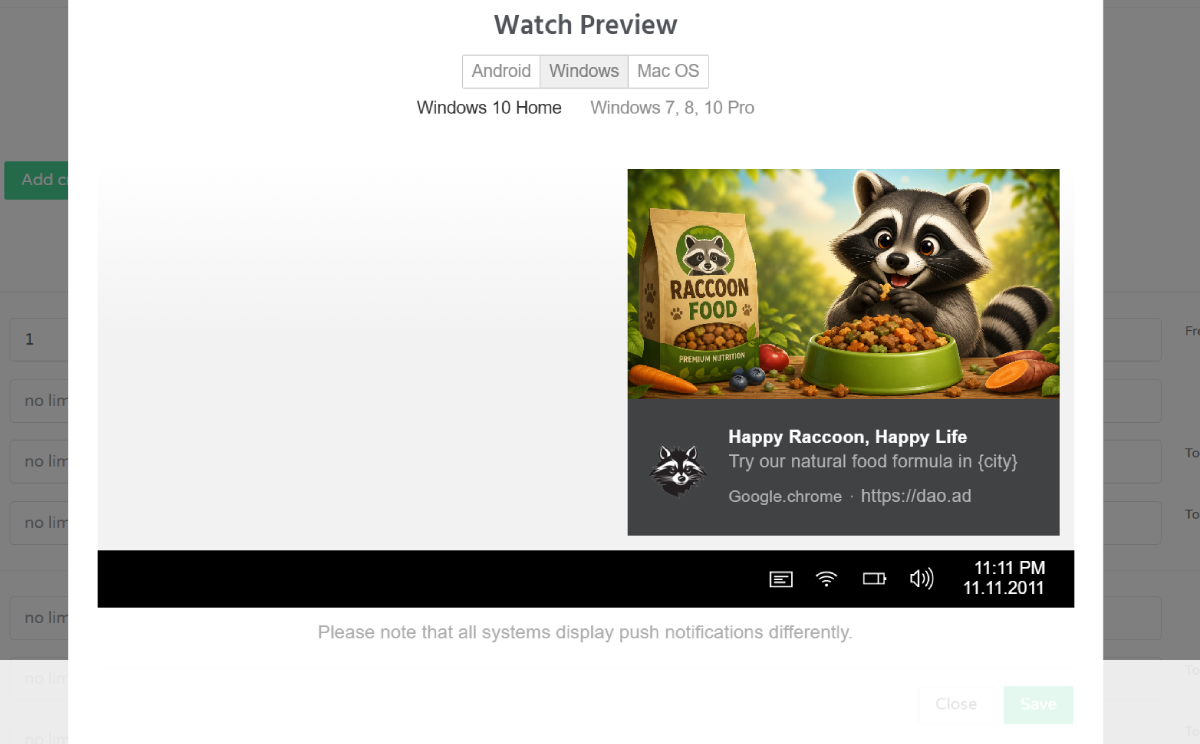 8. Click Save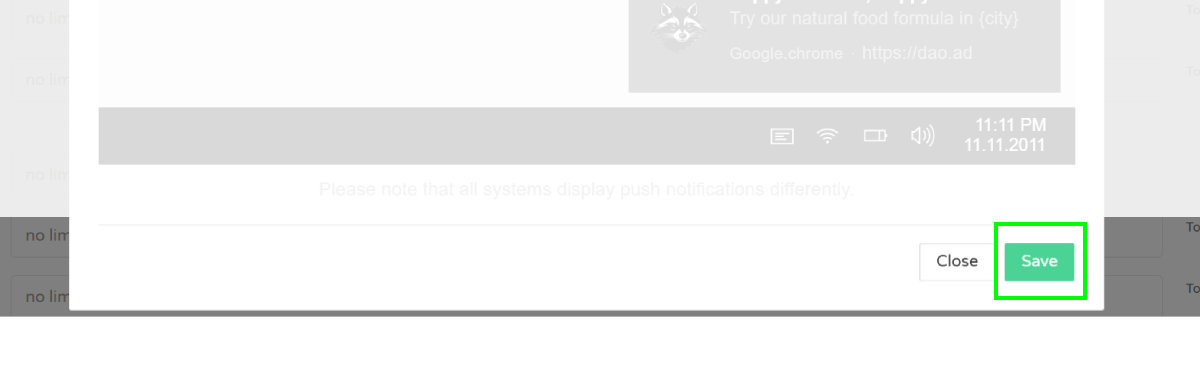 9. The newly created creative now appears in your campaign.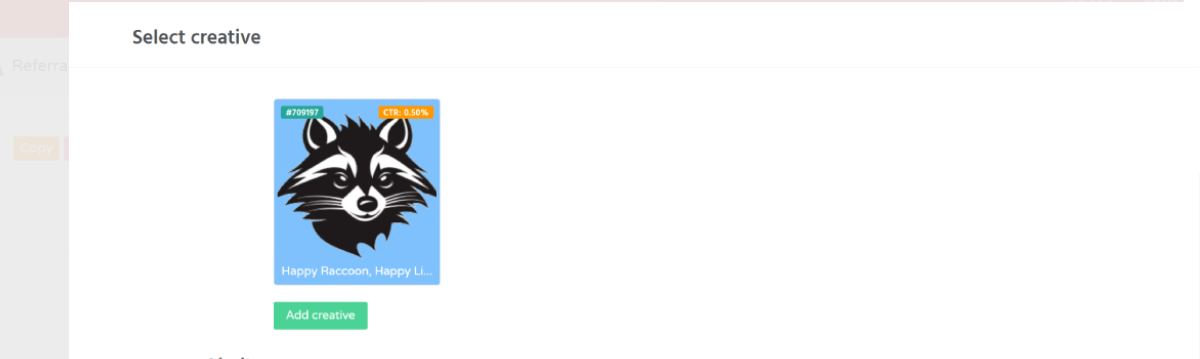 ##### Troubleshooting **Issue:** Unable to save creative **Solutions:** - Check the Title and Icon. Your ads should contain at least Title and Icon - contact DAO.AD Support **Issue:** Creative does not get traffic **Solution:** - Verify that the creative status is Active. - Make sure the campaign is active and has sufficient budget. - Check that the creative has been approved by moderation. ##### Verification After saving the creative, it appears in the **Select Creative** section and becomes available for campaign delivery. ##### Related - [Creative Guidelines](https://wiki.dao.ad/books/creatives-moderation/page/prohibited-content-policy "Prohibited Content Policy") - [Examples of good creatives](https://wiki.dao.ad/books/creatives-moderation/page/examples-of-good-creatives "Examples of good creatives") - [Tracking Configuration Models](https://wiki.dao.ad/books/tracking-postback/page/tracking-configuration-models "Tracking Configuration Models") - [Fund Your Account](https://wiki.dao.ad/books/billing/page/fund-your-account "Fund Your Account") - [Terms of Use](https://dao.ad/terms-use) # Create VAST Link ##### Summary This page explains how to create a Video campaign using a VAST Link that delivers video ads through the IAB VAST standard. ##### Before You Begin - Role: Advertiser. - Required information: - Destination VAST Link - A valid VAST XML endpoint - Estimated time: 5 minutes ##### Steps 1. Navigate to Campaigns and select Video from the campaign type list. 2. Click the Create Campaign button. 3. Enter the campaign name, select VAST Link as the source type, and provide the destination VAST URL. 4. Configure your targeting options and bidding settings. 5. Set the Black list or White list, if needs. 6. Save the campaign. Once submitted, it will be reviewed by the DAO.AD moderation team.Note: DAO.AD validates the provided URL before saving the campaign. The endpoint must return a valid VAST XML response that is publicly accessible.
##### Troubleshooting **Issue:** Campaign cannot be saved because the provided VAST Link is invalid. **Possible causes** - The URL returns HTML instead of XML. - The endpoint is unavailable. - The XML is malformed. - Authentication is required. - The VAST response is empty. **Solutions** - Verify that the URL returns a valid VAST XML document. - Ensure the endpoint is publicly accessible. - Check that the response uses the correct XML format. - Confirm that the VAST response contains at least one playable media file. ##### Related - [Create Youtube link](https://wiki.dao.ad/books/creatives-moderation/page/create-youtube-link "Create Youtube Link") - [Creative Guidelines](https://wiki.dao.ad/books/creatives-moderation/page/prohibited-content-policy "Prohibited Content Policy") - [Fund your account](https://wiki.dao.ad/books/billing/page/fund-your-account "Fund Your Account") - [Domain Volumes Video](https://wiki.dao.ad/books/getting-started/page/domain-volumes-video "Domain Volumes Video") # Create Youtube Link ##### Summary This page explains how to create a Video campaign using a YouTube video URL. DAO.AD uses the provided YouTube link as the video creative for your campaign. ##### Before You Begin - Role: Advertiser. - Required information: - YouTube video URL - Estimated time: 5 minutes ##### Steps 1. Navigate to Campaigns and select Video from the campaign type list. 2. Click the Create Campaign button. 3. Enter the campaign name and keep **Default** selected as the source type. 4. Configure your targeting options and bidding settings. 5. Set the Black list or White list, if needs. 6. Scroll down to the Select creative block and click Add creative. 7. Enter a creative title and select YouTube as the creative type. 8. Paste the YouTube video URL and click Save Creative. 9. Save the campaign. Once submitted, it will be reviewed by the DAO.AD moderation team.Note: Ensure that the provided YouTube video is publicly available and has not been removed or restricted.
##### Troubleshooting **Issue:** My ads does not receive traffic. **Solutions** - Verify that the campaign status is Active. - Verify that the YouTube URL is valid and publicly accessible. - Ensure that your account has a sufficient balance to run the campaign. - Verify that your targeting settings are not overly restrictive or conflicting. ##### Related - [Create VAST link](https://wiki.dao.ad/books/creatives-moderation/page/create-vast-link "Create VAST Link") - [Creative Guidelines](https://wiki.dao.ad/books/creatives-moderation/page/prohibited-content-policy "Prohibited Content Policy") - [Fund Your Account](https://wiki.dao.ad/books/billing/page/fund-your-account "Fund Your Account") - [Domain Volumes Video](https://wiki.dao.ad/books/getting-started/page/domain-volumes-video "Domain Volumes Video")